Realtek PCIe GbE Family Controller: Driver Download and Fixes
What the Realtek PCIe GbE Family Controller does, the common Ethernet problems it causes, and how to download and update its driver on Windows 10.
In this article
If your PC uses a wired Ethernet connection, there is a good chance the port on your motherboard is driven by a Realtek PCIe GbE Family Controller. Most of the time you never notice it. But when it fails, the symptoms are hard to miss: the network keeps dropping, Windows reports that no network is available, or Device Manager shows a yellow exclamation mark next to the adapter.
This guide explains what the controller does, why it causes trouble, and how to get your connection back.
What is the Realtek PCIe GbE Family Controller?
It is the network chip, usually built into the motherboard, that handles your wired LAN connection. The name describes what it does: it connects the PCI Express (PCIe) bus inside your computer to a Gigabit Ethernet (GbE) network. From there, your router takes you onto the internet.
Like any hardware, the chip needs a driver so Windows can talk to it. Nearly every problem with it comes down to that driver.
Common Problems with This Controller
- The Ethernet connection drops at random or after the PC wakes from sleep.
- Windows says no network is available even though the cable is plugged in.
- Device Manager shows a yellow warning icon on the adapter.
- The adapter reports Code 10, Code 12 or Code 31 errors.
There are only two real causes: a software problem with the driver, or a faulty network chip. Start with the driver fixes, because they solve the problem in the vast majority of cases.
How to Fix Realtek PCIe GbE Family Controller Problems
Reinstall the Driver
A yellow mark next to the device usually means the driver is missing or was not installed correctly. Removing it and letting Windows install a fresh copy is the quickest fix.
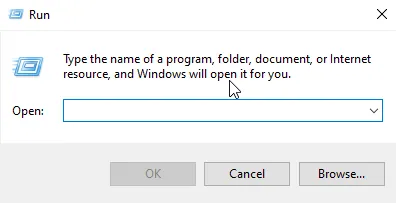
- Press Windows + R on your keyboard to open the Run box.
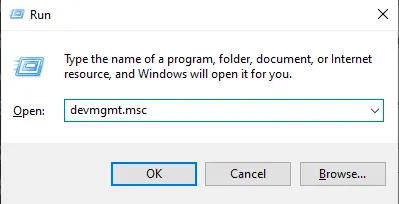
- Type devmgmt.msc and click OK to open Device Manager.
- Expand Network adapters, right-click Realtek PCIe GbE Family Controller and choose Uninstall device.
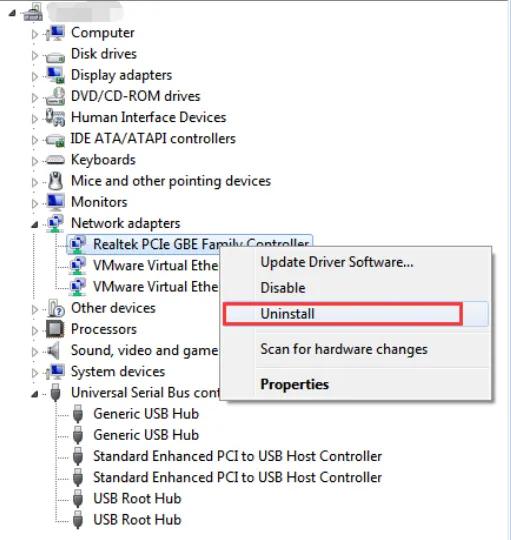
Image source: drivereasy.com - Tick Delete the driver software for this device and click OK.
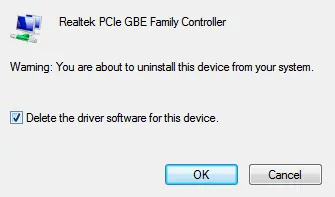
Image source: drivereasy.com - Open the Action menu and click Scan for hardware changes. Windows will detect the adapter and install a driver again.
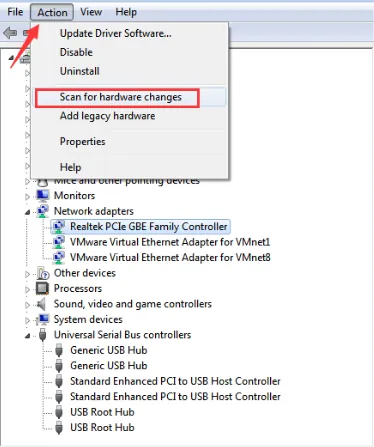
Image source: drivereasy.com - Check whether your internet connection works.
If Windows installs a generic driver and the problem continues, download the latest driver from Realtek directly (see the download section below) and install it.
Go Back to a System Restore Point
If the connection worked fine until recently, perhaps until a Windows update or a new program, a restore point from before that change can undo it.
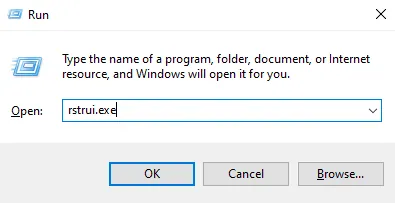
- Press Windows + R, type rstrui.exe and click OK.
- Click Next, choose a restore point from a date when everything was working, and finish the wizard.
Your PC will restart in the state it was in on that date. Your personal files are not affected.
Replace the Network Adapter
If none of the driver fixes help, the network chip itself may be dead. Fortunately, this is a cheap problem to solve. A PCIe network card costs very little; just check that it fits a free slot on your motherboard and supports the speed you need. If you would rather not open the case, a USB Ethernet adapter or a USB Wi-Fi adapter works just as well and plugs straight in.
Either way, whether the cause is software or hardware, the fix is free or costs very little.
Realtek PCIe GbE Family Controller Driver Download
Always download Realtek network drivers from the official Realtek website or from your PC or motherboard manufacturer's support page. Avoid driver mirror sites, which often bundle adware or outdated files.
- Realtek PCIe FE / GbE / 2.5GbE / Gaming Family Controller software (Windows drivers, including Windows 10 and 11)
- Realtek USB FE / GbE / 2.5GbE / Gaming Family Controller software (for USB Ethernet adapters)
The same Realtek pages also offer files for other systems, including:
- DOS and boot tools: UEFI UNDI driver, PXE and RPL boot ROM code, DASH PXE ROM code, NDIS2 drivers for GbE and 2.5G adapters, and the RSET8168 diagnostic program.
- Linux: the r8168 driver for Gigabit adapters and the r8125 driver for 2.5G adapters.
- FreeBSD: the Realtek BSD driver package.
Pick the package that matches your operating system, run the installer (or follow the included readme on Linux and BSD), and restart your computer.
Sources: realtek.com, drivereasy.com, appuals.com