Runtime Broker High CPU Usage: What It Is and How to Fix It
Is RuntimeBroker.exe a virus? Learn what Runtime Broker does in Windows 10 and how to fix its high CPU, memory and disk usage with proven solutions.
In this article
- What is Runtime Broker (RuntimeBroker.exe)?
- When Runtime Broker Uses Too Much Memory
- When Runtime Broker Causes High CPU Usage
- Is RuntimeBroker.exe a Virus?
- Common Runtime Broker Problems
- How to Fix Runtime Broker High CPU Usage on Windows 10
- Turn Off Windows Tips and Suggestions
- End the Runtime Broker Process
- Use a Single Picture on the Lock Screen
- Turn Off Peer-to-Peer Updates
- Turn Off Background Apps
- Check Your Antivirus
- Change the TimeBroker Service in the Registry
- Remove Groove Music with PowerShell
- Disable or Remove OneDrive
- Conclusion
Open Task Manager on a Windows 10 PC and you will see dozens of processes with names like Service Host, Desktop Window Manager and System Interrupts. Each one has its own job, and each can occasionally cause trouble. This article looks at one that regularly worries users: Runtime Broker. We explain what it does, whether it is safe, and how to stop it from eating your CPU and memory.
What is Runtime Broker (RuntimeBroker.exe)?
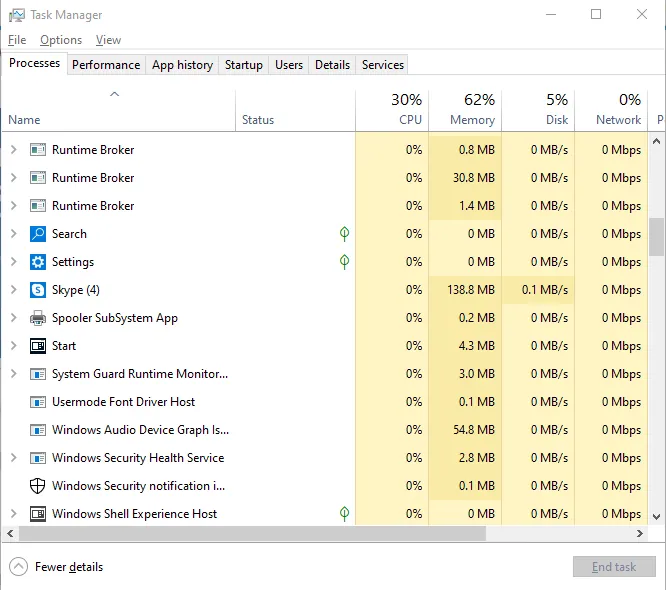
Runtime Broker is a core Windows process that manages permissions for apps installed from the Microsoft Store.
A little history helps here. With Windows 8, Microsoft introduced a new kind of app that you download from the Store. These were first called Metro apps; in Windows 10 they evolved into Universal Windows Platform (UWP) apps. Like traditional desktop programs, they can ask to use your microphone, webcam, location, files and so on. Windows cannot simply let every app use whatever it wants, whenever it wants, so something has to check those requests. That is Runtime Broker's job.
When no Store apps are running, Runtime Broker uses almost no CPU or memory. When you open a Universal app, it springs into action: CPU usage may briefly jump to around 15% and it may use a few hundred megabytes of RAM. That is normal.
When Runtime Broker Uses Too Much Memory
Runtime Broker has a reputation for consuming memory, but the real cause is usually a memory leak in one of the apps it is managing. As a quick fix, you can end the process in Task Manager and restart your PC. The long-term fix is to find and deal with the app behind it.
When Runtime Broker Causes High CPU Usage
One of the best-known triggers is the Windows feature that shows tips and suggestions. It works through Runtime Broker and can keep the CPU busy for no good reason. The fix is covered below.
Is RuntimeBroker.exe a Virus?
No. The real Runtime Broker is a legitimate part of Windows. However, because it runs from an ordinary EXE file, malware sometimes uses the same name to hide.
To check, right-click Runtime Broker in Task Manager and choose Open file location. If the file is in C:\Windows\System32, it is genuine. If it is anywhere else, scan your PC with Microsoft Defender or another reputable antivirus program.
Common Runtime Broker Problems
- Runtime Broker errors: usually caused by antivirus software and fixed by changing its settings.
- High disk, memory or RAM usage: usually fixed by turning off certain Windows features.
- Multiple instances of Runtime Broker: end them all in Task Manager.
- Runtime Broker keeps running: often fixed by changing your Windows Update settings.
How to Fix Runtime Broker High CPU Usage on Windows 10
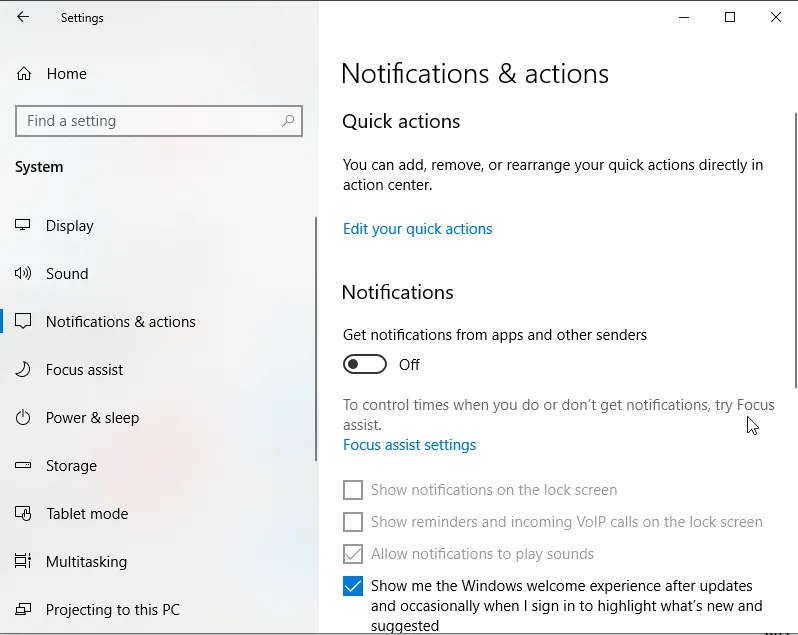
Turn Off Windows Tips and Suggestions
This is the fix that works for the most people, so try it first.
- Press Windows + I to open Settings.
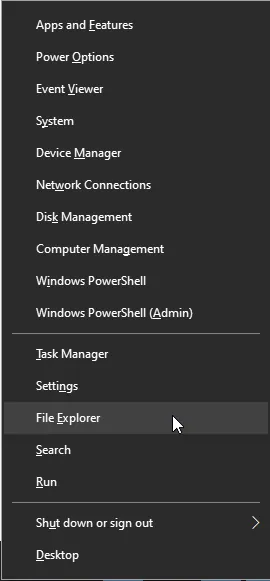
- Go to System.
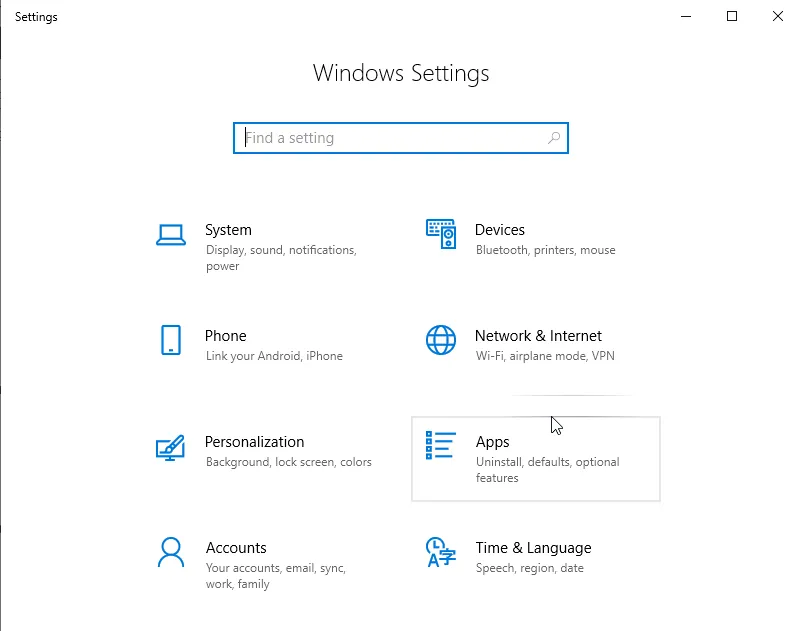
- Select Notifications & actions on the left, then turn off Get tips, tricks, and suggestions as you use Windows.
End the Runtime Broker Process
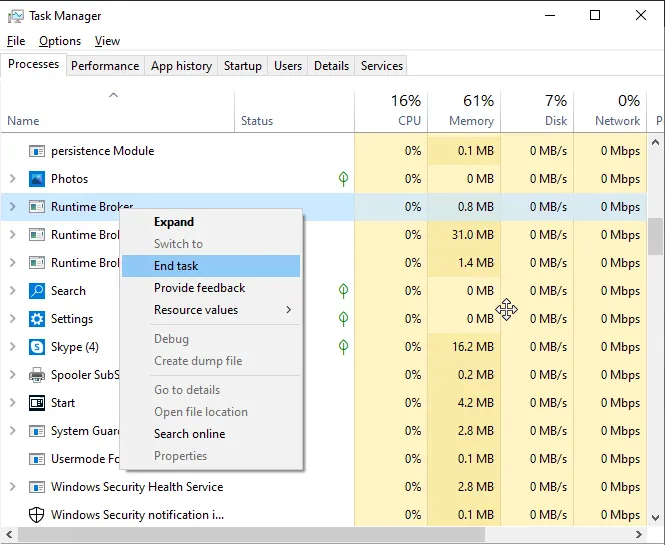
Ending the process is a quick, temporary way to bring CPU usage down. Windows restarts it when needed.
- Press Ctrl + Shift + Esc to open Task Manager.
- Find Runtime Broker in the list, right-click it and choose End task. If there are several, end each one.
Use a Single Picture on the Lock Screen
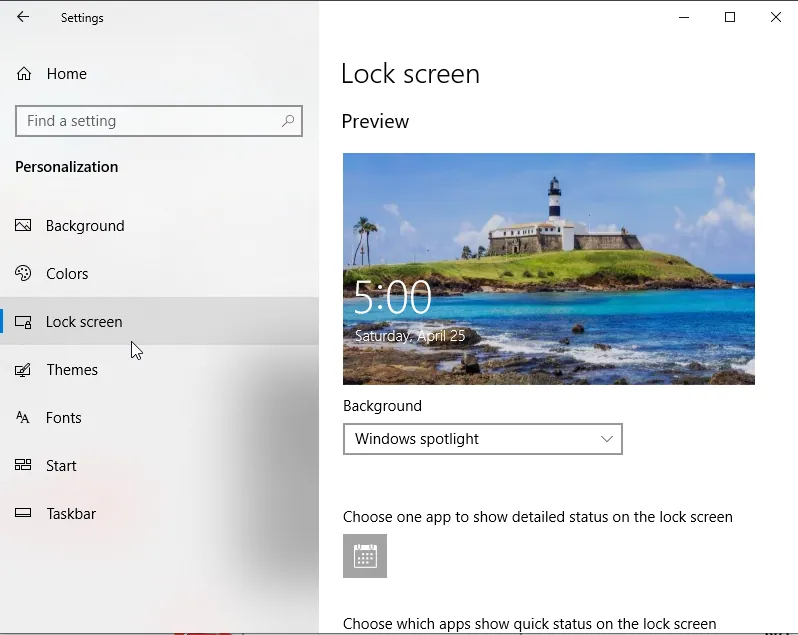
Some users traced the problem to the lock screen slideshow. Switching to a single picture fixed it for them.
- Open Settings and go to Personalization.
- Select Lock screen and set Background to Picture instead of Windows spotlight or Slideshow.
Turn Off Peer-to-Peer Updates
Windows can download updates from other PCs on your local network and on the internet, a feature called Delivery Optimization. It can save bandwidth, but it has also been linked to high CPU usage by Runtime Broker.
- Open Settings and go to Update & Security.
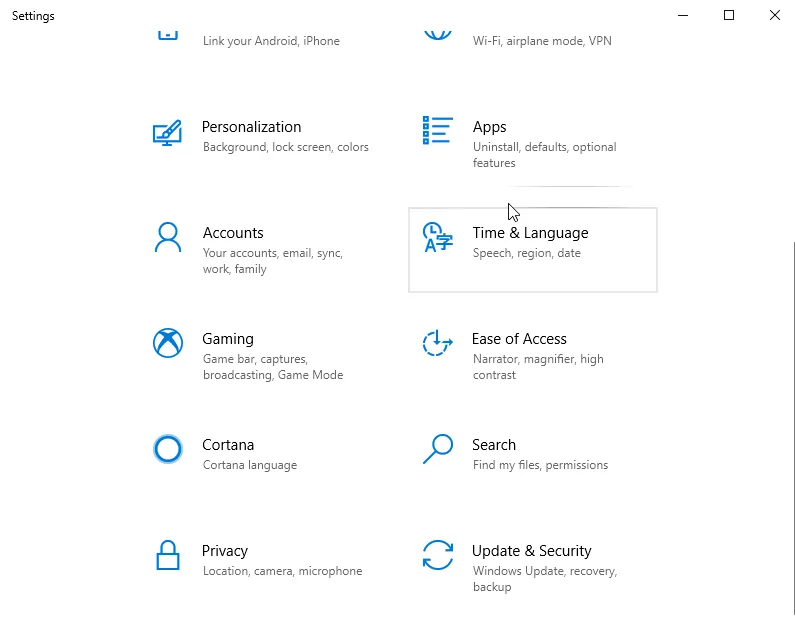
- Click Advanced options.
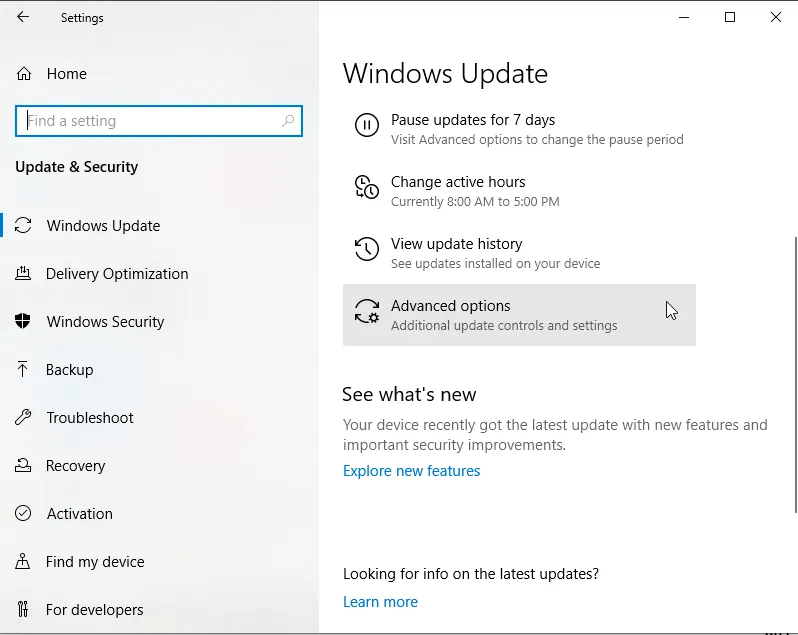
- Scroll down and click Delivery Optimization.
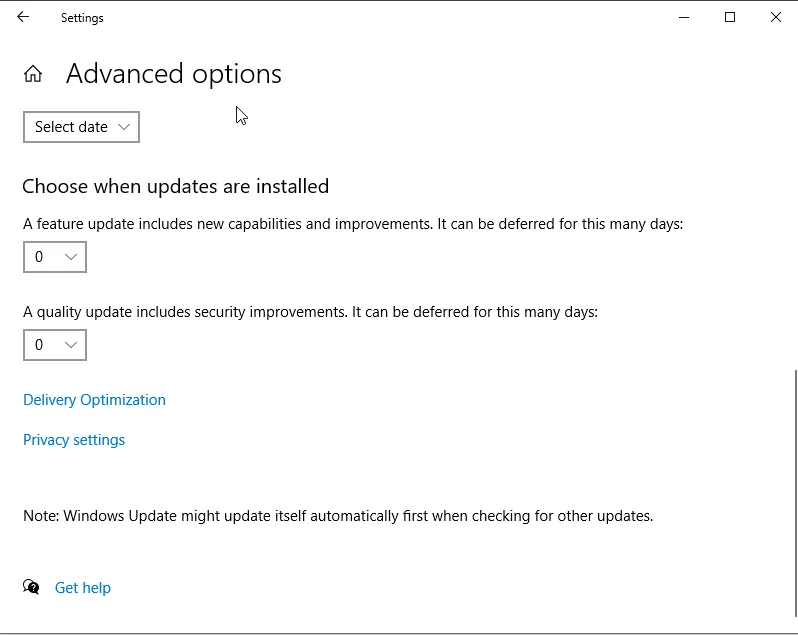
- Turn off Allow downloads from other PCs.
Windows will now download updates only from Microsoft.
Turn Off Background Apps
Store apps running in the background keep Runtime Broker busy. Turning them off reduces its workload, although you may miss notifications from some Universal apps.
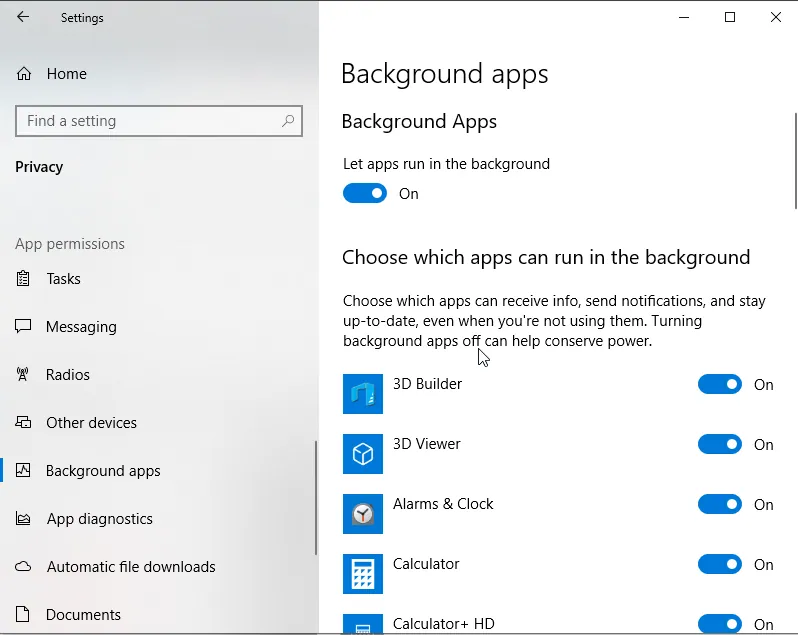
- Open Settings and go to Privacy.
- Select Background apps on the left and turn off Let apps run in the background, or switch off individual apps you do not need.
Check Your Antivirus
Security software can interfere with Runtime Broker and push up CPU usage. Turn off individual features of your antivirus and see whether that helps. If not, disable it temporarily or uninstall it to test. If removing it solves the problem, reinstall the latest version or switch to a different product. Bitdefender and the built-in Microsoft Defender are both good options that rarely interfere with system processes.

Change the TimeBroker Service in the Registry
Advanced users can stop the TimeBroker service from starting, which reduces Runtime Broker activity. Back up the registry first. This change also affects some Cortana features.
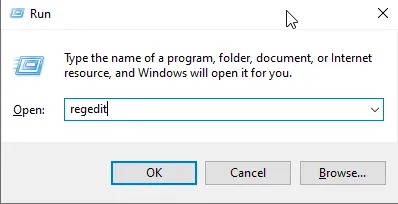
- Press Windows + R, type regedit and press Enter.
- Go to HKEY_LOCAL_MACHINE\SYSTEM\CurrentControlSet\Services\TimeBrokerSvc.
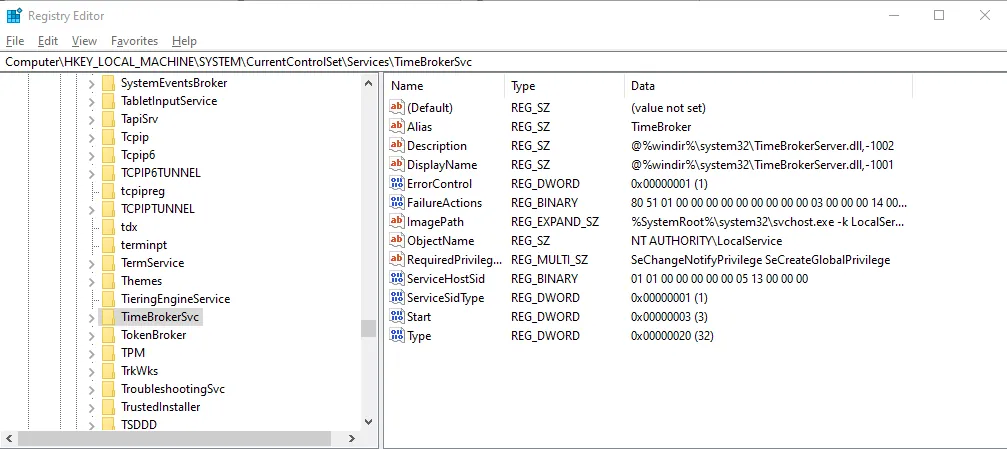
- Double-click Start and change its value from 3 to 4 (disabled). Restart your PC.
Remove Groove Music with PowerShell
Several users found that the Groove Music app was responsible. Because it is a built-in Universal app, it has to be removed with PowerShell.
- Type powershell in the search bar, right-click Windows PowerShell and choose Run as administrator.
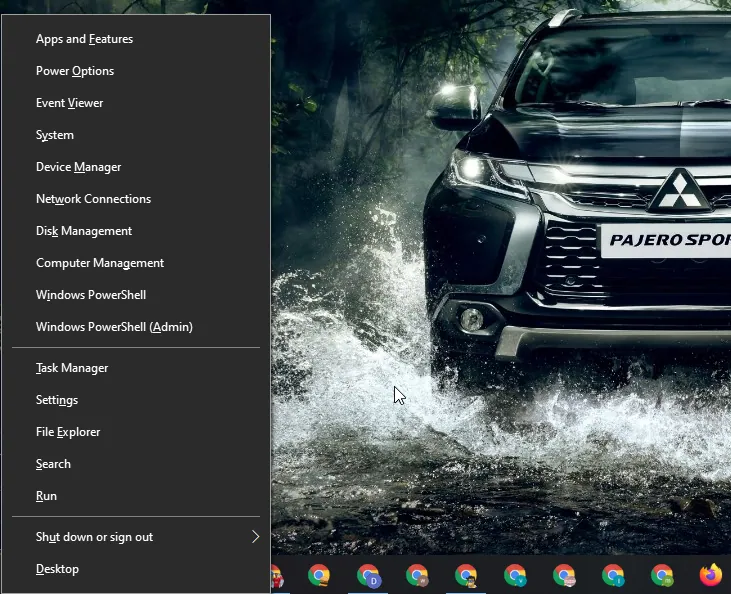
- Run these commands one at a time:
Get-AppxPackage -name Microsoft.ZuneMusic | Remove-AppxPackage
Get-AppxPackage -name Microsoft.Music.Preview | Remove-AppxPackage
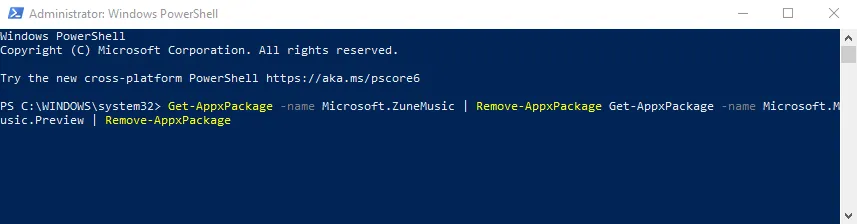
You can reinstall Groove Music from the Microsoft Store at any time.
Disable or Remove OneDrive
OneDrive is another app that has been linked to Runtime Broker's high CPU usage. If you do not use it, you can remove it.
- Search for Command Prompt, right-click it and choose Run as administrator.
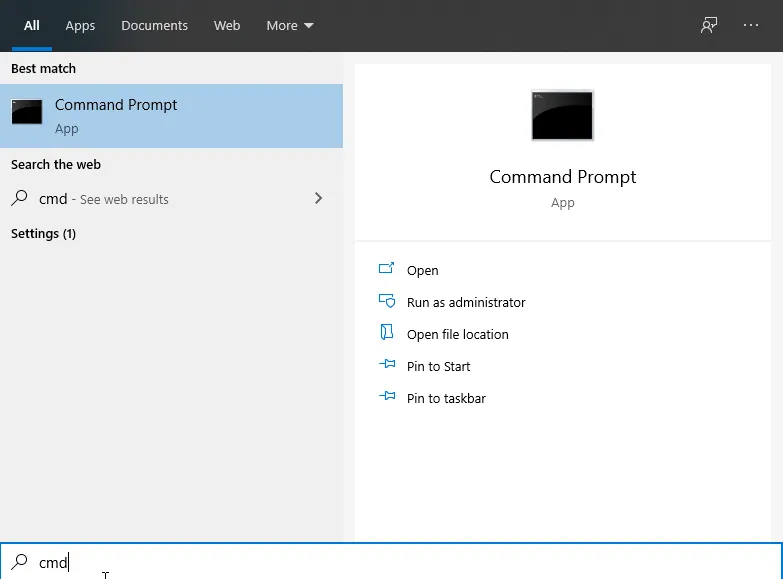
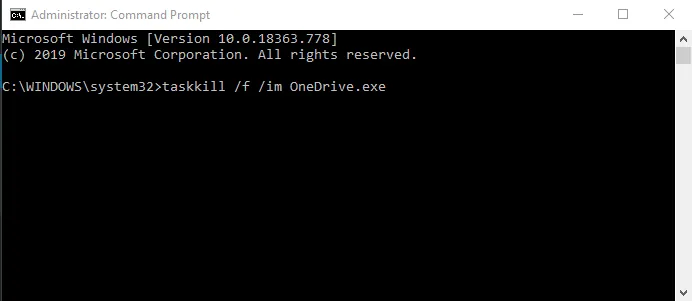
- Close all OneDrive processes with this command:
taskkill /f /im OneDrive.exe
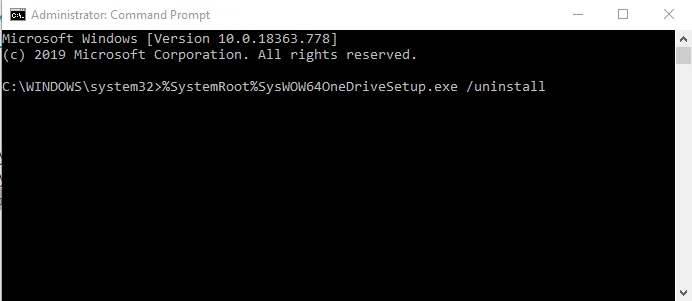
- Uninstall OneDrive with the command for your version of Windows:
%SystemRoot%\System32\OneDriveSetup.exe /uninstall   (32-bit Windows)
%SystemRoot%\SysWOW64\OneDriveSetup.exe /uninstall   (64-bit Windows)
Make sure your files are synced or backed up before removing OneDrive.
Conclusion
Runtime Broker is a harmless and necessary part of Windows 10. It only becomes a problem when an app or a Windows feature keeps it unnecessarily busy. Turning off Windows tips usually solves it; if not, the other fixes above will help you track down the cause.
Sources: fossbytes.com, partitionwizard.com, ghacks.net, windowsreport.com