NVIDIA System Monitor for Windows 10: What It Is and How to Remove It
NVIDIA System Monitor (NVMonitor.exe) tracks GPU temperature, clocks, voltage and fan speed. Learn what it does, whether you need it and how to remove it.
In this article
If you found NVMonitor.exe running in Task Manager or listed among your startup programs, you are looking at NVIDIA System Monitor. It is a legitimate NVIDIA utility, not malware, but on most modern PCs it no longer does anything useful. Here is what it is, what it shows, and how to remove it.
What is NVIDIA System Monitor?
NVIDIA System Monitor is part of the NVIDIA System Tools suite. It tracks and logs live statistics from NVIDIA-based motherboards and graphics cards: temperatures, voltages, clock speeds, multipliers, fan speeds and CPU usage. It can also be used to benchmark DirectX (Direct3D) and OpenGL graphics performance.
The last widely distributed version, 6.08, is free and runs on Windows XP, Vista, 7, 8, 8.1 and 10 in both 32-bit and 64-bit editions. However, it was designed for NVIDIA nForce motherboards and older ESA-compatible hardware. On a typical PC built in the last decade, most of its panels will be empty.
NVIDIA System Monitor (NVMonitor.exe) Startup Entries
The program adds itself to Windows startup, which is why many people discover it by accident. You will find it in these places:
- Registry: under HKCU\Software\Microsoft\Windows\CurrentVersion\Run, as "NVIDIA System Monitor", pointing to
"C:\Program Files\NVIDIA Corporation\NVIDIA System Monitor\NVMonitor.exe" startup - Startup programs: as NVMonitor in MSConfig (Windows 7) or the Startup tab of Task Manager (Windows 8 and 10).
- Windows Defender Software Explorer: on Windows Vista and 7, under Tools > Software Explorer.
If the file is located anywhere other than the NVIDIA Corporation folder in Program Files, scan your PC with an antivirus; malware sometimes borrows legitimate file names.
How NVIDIA System Monitor Works
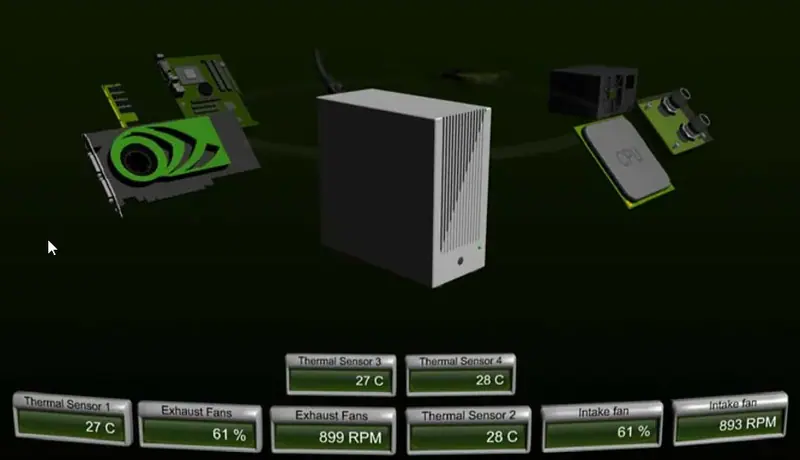
The utility displays your system as a 3D model of its core components. Click a part, and it moves to the front with all the information available for it. Use the mouse wheel to change the viewing angle if you prefer an overhead view. Because the interface is built on OpenGL, running it has almost no effect on performance.
The main 3D screen is mainly where you choose which values you want to watch. Once you add the parameters you care about to the desktop and minimize or close the main window, live reporting begins in small desktop panels.
Which values are available depends on the make and model of each component. The screens below show what a fully supported system reports.
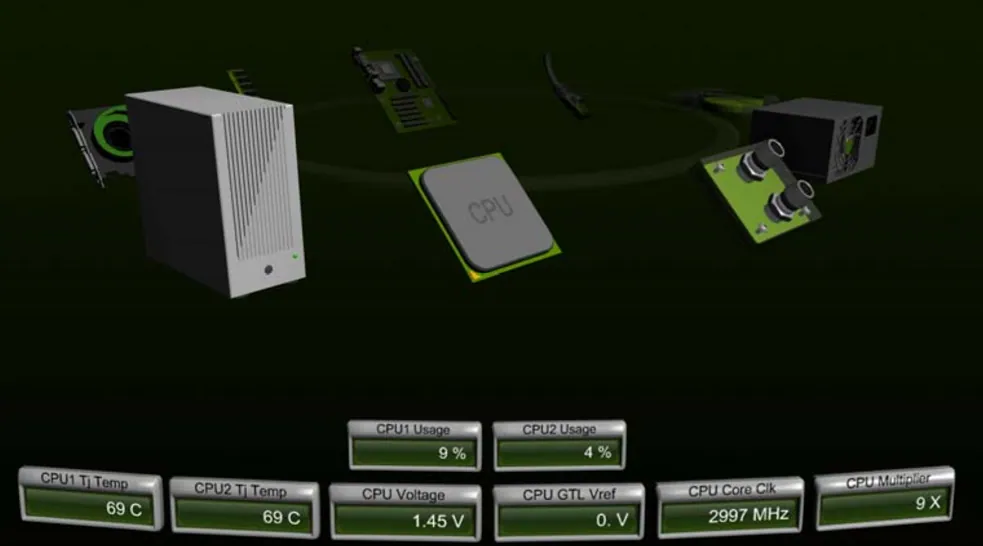
CPU
The processor panel shows its key voltages, temperatures and status.
GPU
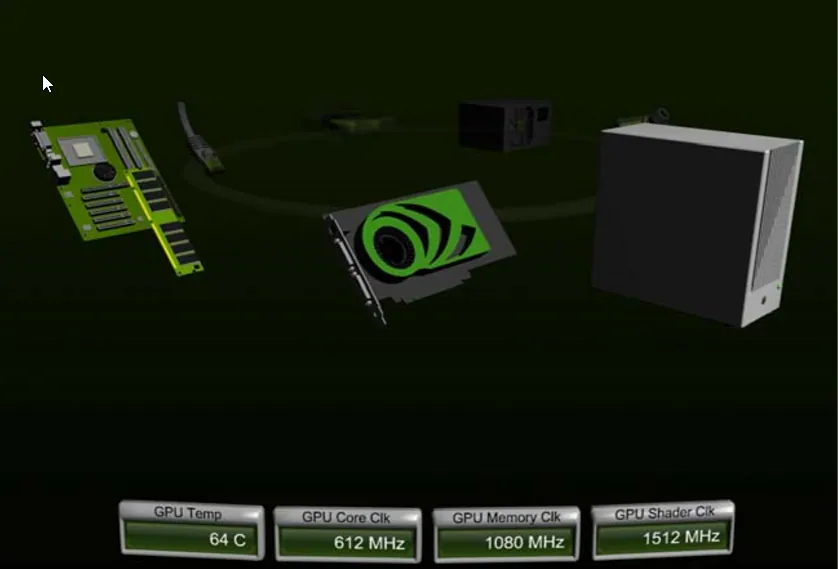
The graphics card panel is simple and to the point, with the main operating values and status. It changes to match the number of cards installed: with three GPUs in SLI, for example, you see three cards joined by an SLI bridge.
Motherboard
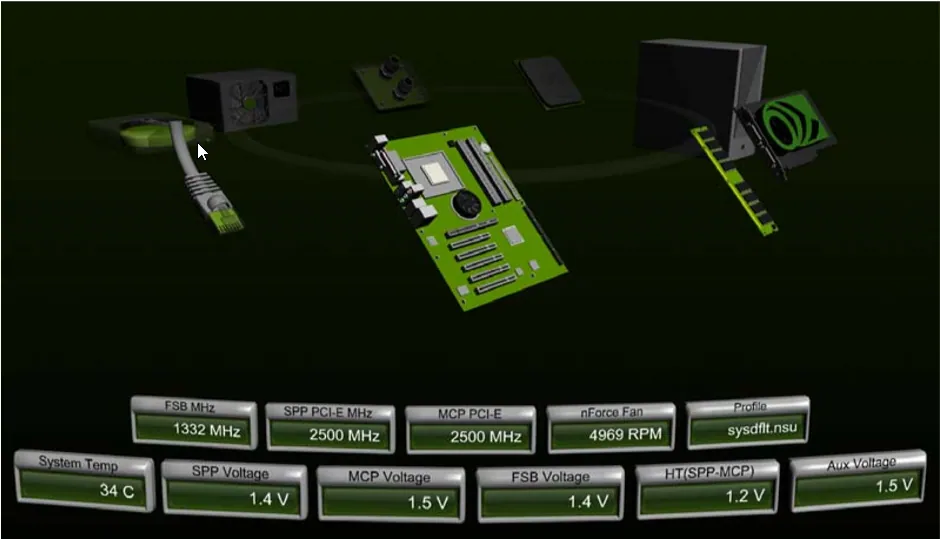
Like the CPU panel, the motherboard view reports key voltages, temperatures and status information.
Memory
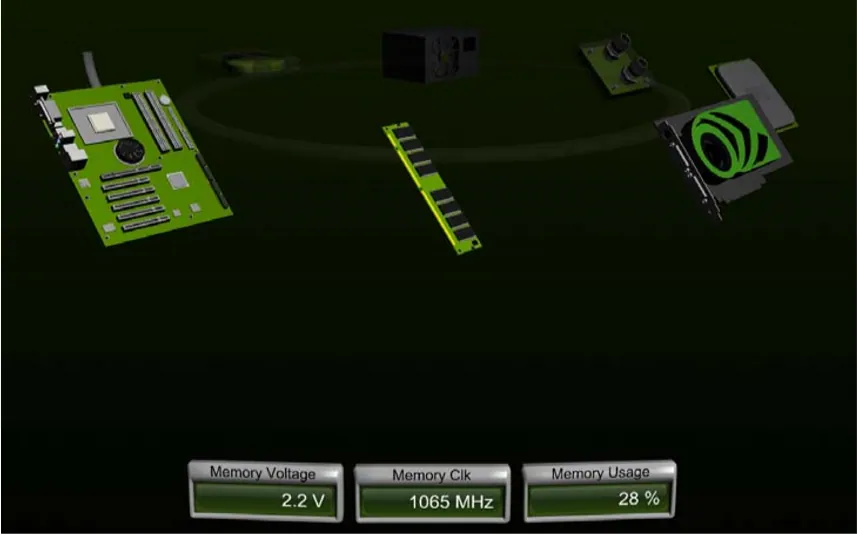
Memory modules report their operating frequency, voltage and how much memory is actually in use.
Hard Drive
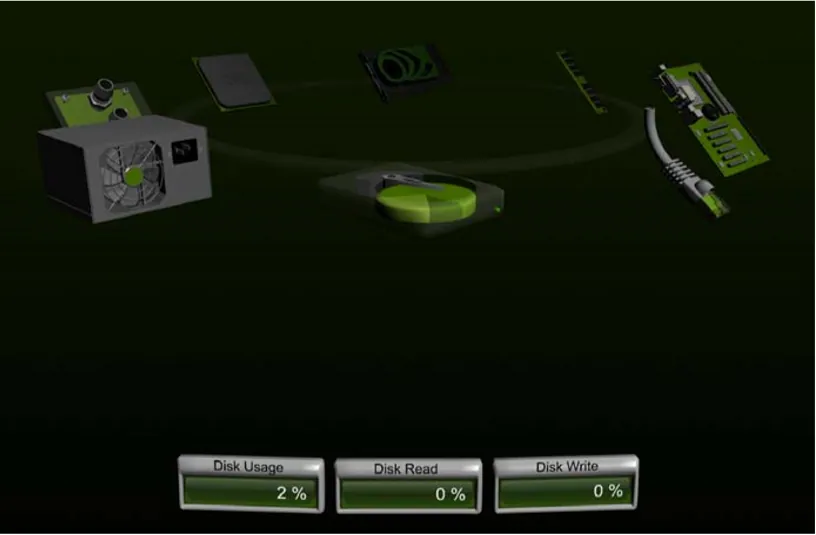
The drive panel shows overall disk usage as a percentage, with a breakdown of read and write activity.
Networking
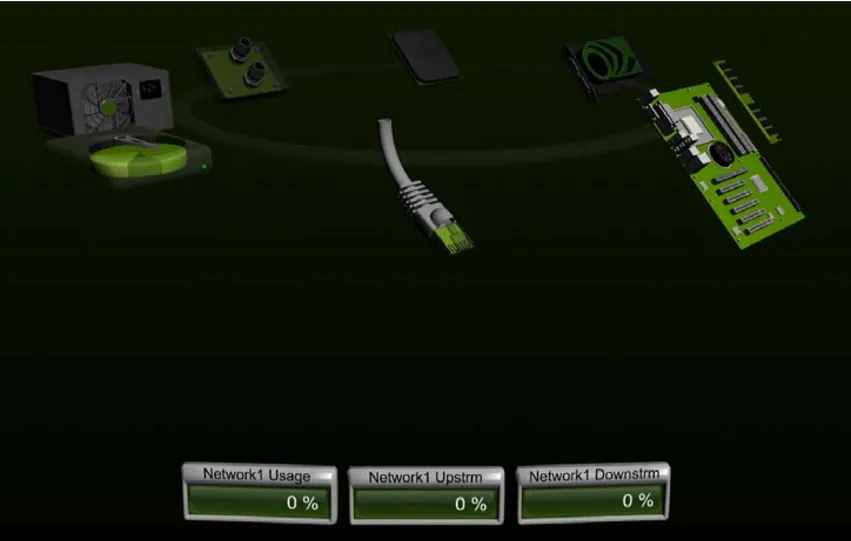
Total network usage is shown along with separate upload and download percentages. The network icon only appears when a cable is physically connected.
Water Cooling
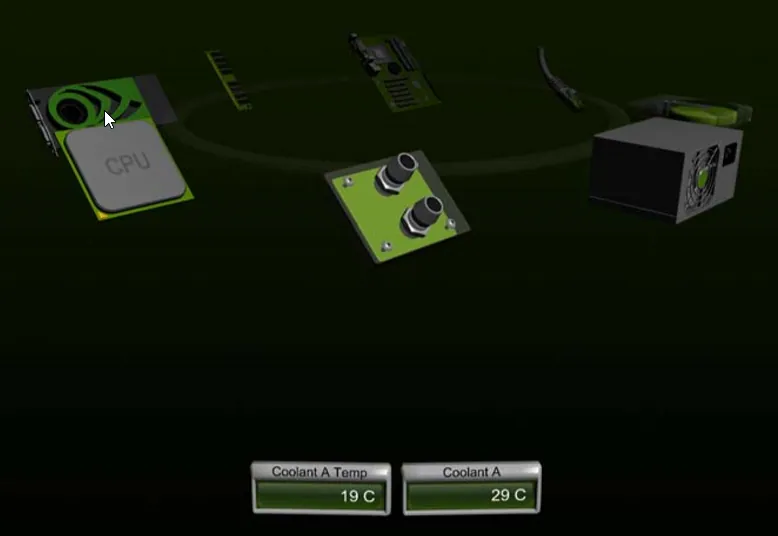
With a supported CoolIT liquid cooler, the panel shows both the target coolant temperature and the actual current temperature.
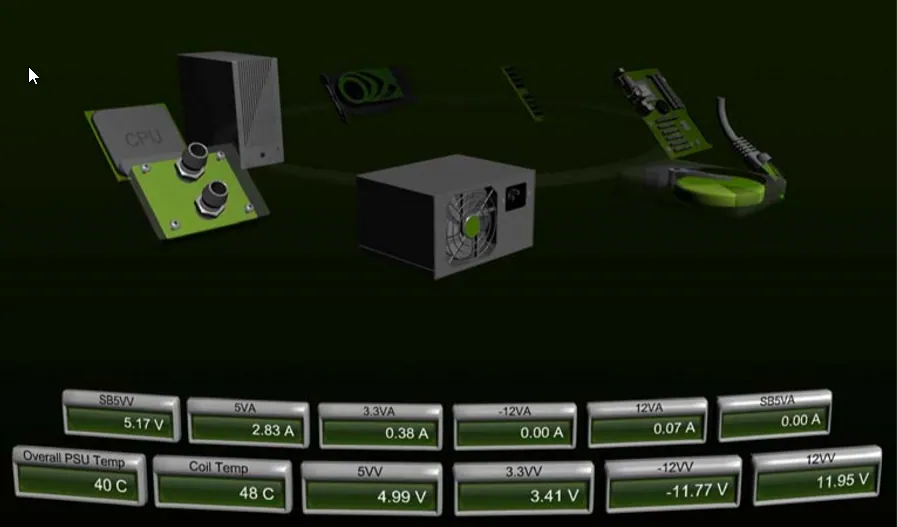
Power Supply
A compatible power supply reports a lot of detail, including voltage and current on the 5 V and 12 V rails, plus PSU and coil temperatures.
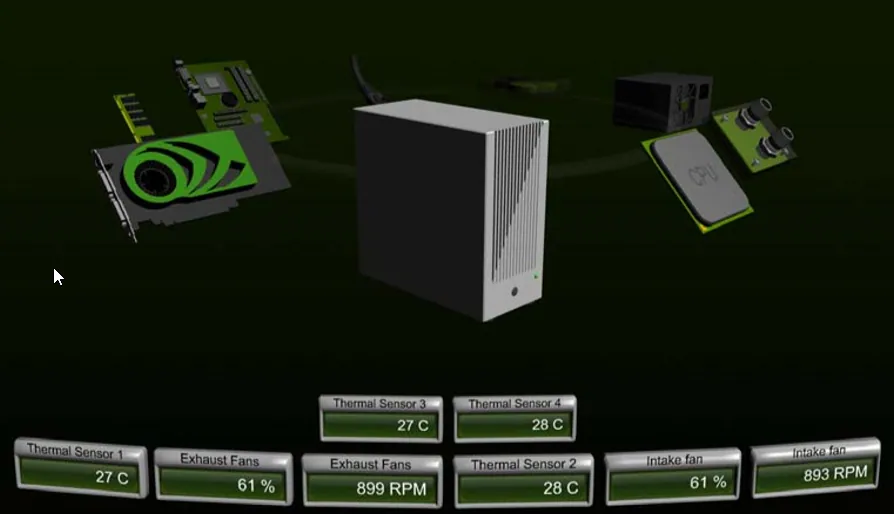
Chassis
The case panel lists temperatures and fan speeds. As in the NVIDIA Control Panel, the fan percentage reflects the duty cycle rather than the fan's actual RPM.
Should You Remove NVIDIA System Monitor?
If you do not have an nForce motherboard or other ESA hardware, there is little reason to keep it. It does not affect your graphics driver or games, so removing it is safe. If you just want it to stop loading with Windows, disable NVMonitor on the Startup tab of Task Manager instead.
How to Remove NVIDIA System Monitor
- Right-click the Start button (or the bottom-left corner of the screen) and open Control Panel.
- Under Programs, click Uninstall a program. This works the same way in Windows Vista, 7, 8 and 10.
- Select NVIDIA System Monitor (or NVIDIA System Tools, if that is how it is listed) and click Uninstall.
- Follow the prompts and restart your PC.
Sources: shouldiremoveit.com, lo4d.com