KMODE Exception Not Handled in Windows 10: How to Fix It
Getting the KMODE_EXCEPTION_NOT_HANDLED blue screen? Learn what causes it and fix it by disabling Fast Startup, updating drivers and repairing system files.
In this article
- What is the KMODE Exception not Handled Error?
- What Causes This Error?
- How to Fix KMODE Exception not Handled
- 1. Disable Fast Startup
- 2. Undo Recent Changes and Remove Problem Software
- 3. Check Hardware Compatibility
- 4. Remove Bitdefender, Cisco VPN Client or Other Conflicting Security Software
- 5. Test Your RAM
- 6. Update Your Network Driver (netio.sys)
- 7. Update Other Faulty Drivers
- 8. Run System File Checker
- 9. Remove Gigabyte ON/OFF
- 10. Rename the Problem Driver File
- 11. Update Your BIOS
- 12. Check Your CPU Voltage and Overclocking
- Final Thoughts
A blue screen is the most alarming error a Windows PC can show. The system crashes completely and your only option is to restart. To help you find the cause, every blue screen includes a stop code, and this guide is about one of the most common: KMODE_EXCEPTION_NOT_HANDLED. It often appears right after a Windows update or a fresh Windows 10 installation.
What is the KMODE Exception not Handled Error?
KMODE_EXCEPTION_NOT_HANDLED (error code 0x0000001E) is a Blue Screen of Death that appears when a program running in kernel mode, the most privileged level of Windows, triggers an error that the system's error handler cannot deal with. In plain terms, a driver or core component overwrote memory it should not have touched, and Windows stopped everything to protect itself.
In some cases the PC gets stuck in a loop, crashing and restarting again and again.
The blue screen sometimes names the file that caused the crash, for example ntfs.sys, netio.sys or bdselfpr.sys. If you see a file name, write it down: it points straight to the culprit.
What Causes This Error?
- Faulty, outdated or incompatible drivers are by far the most common cause.
- Corrupted or missing Windows system files or registry entries.
- Software that was installed incorrectly or conflicts with Windows, especially antivirus and VPN clients.
- Defective hardware, most often a failing RAM module or hard drive.
- Overclocked hardware running outside its stable limits, which several Reddit users have linked to ntfs.sys crashes.
Because there are so many possible causes, troubleshooting can feel overwhelming. The fixes below are ordered from the quickest and safest to the most advanced.
How to Fix KMODE Exception not Handled
1. Disable Fast Startup
Fast Startup saves part of the system state when you shut down, which can bring a faulty driver straight back on the next boot. Turning it off is quick and often solves the problem.
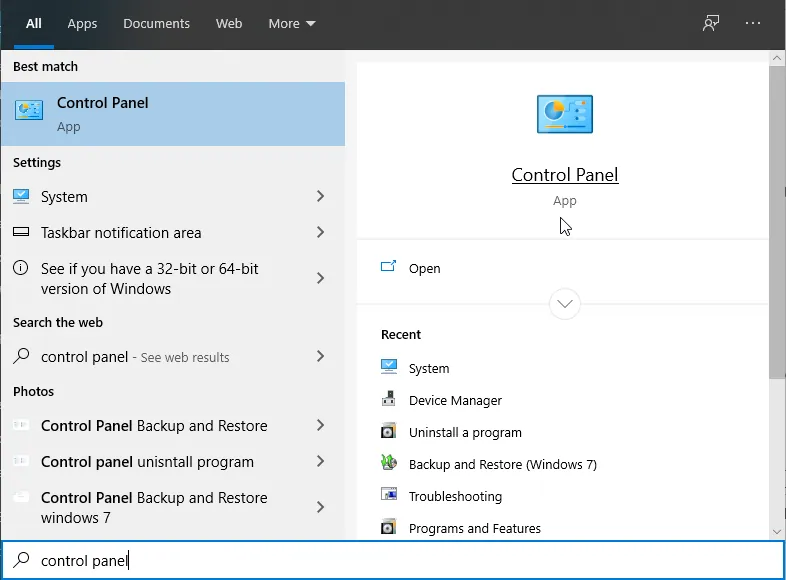
- Type Control Panel in the search bar and open it.
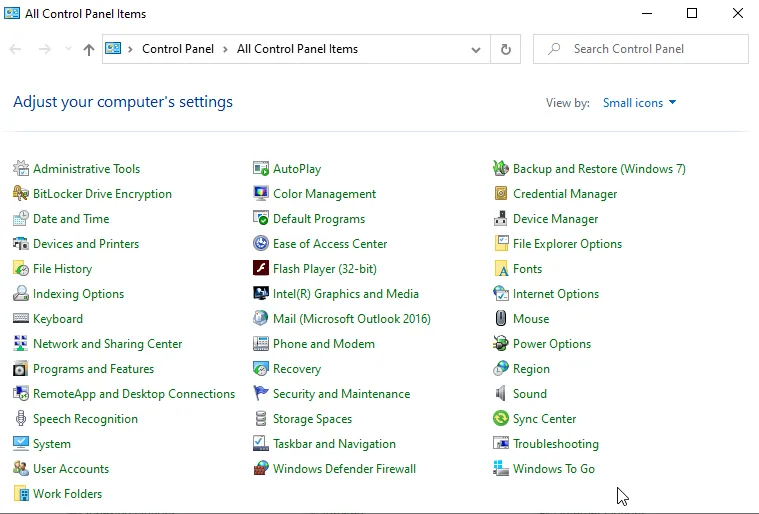
- Set View by to Large icons and click Power Options.
- Click Choose what the power buttons do.
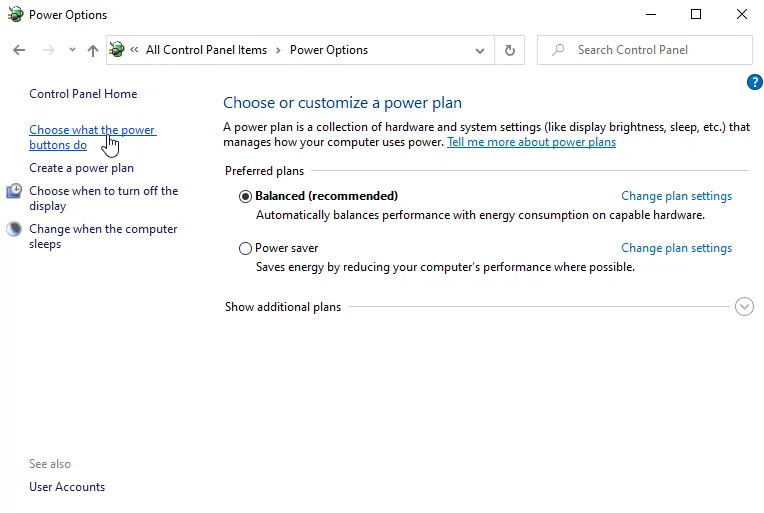
- Click Change settings that are currently unavailable.
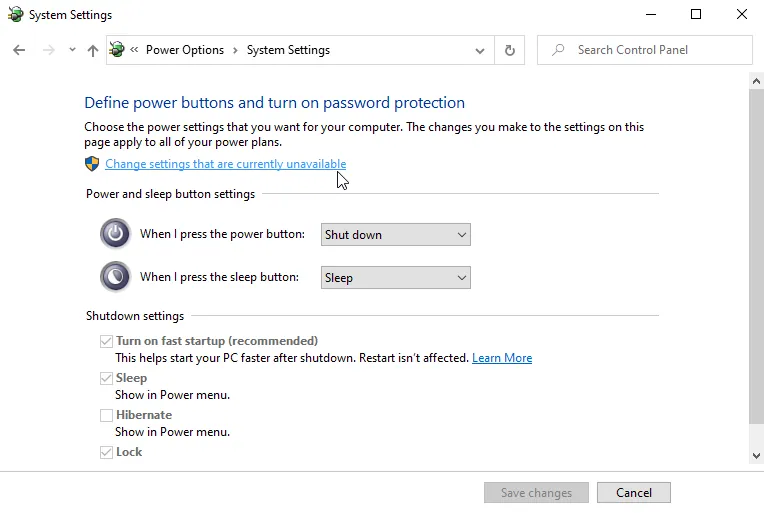
- Uncheck Turn on fast startup (recommended) and click Save changes.
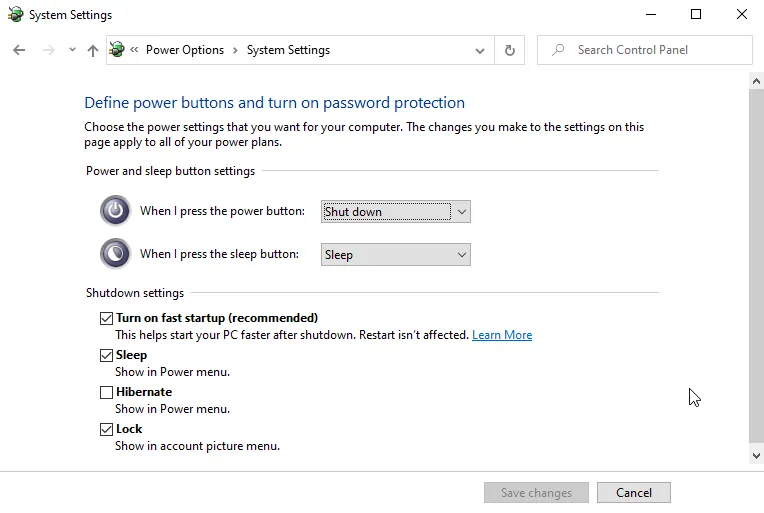
Restart the PC and see whether the error comes back.
2. Undo Recent Changes and Remove Problem Software
Whenever a PC starts crashing, ask yourself what changed recently. If you just added a new piece of hardware, remove it. If you recently installed a program or updated a driver, uninstall it.
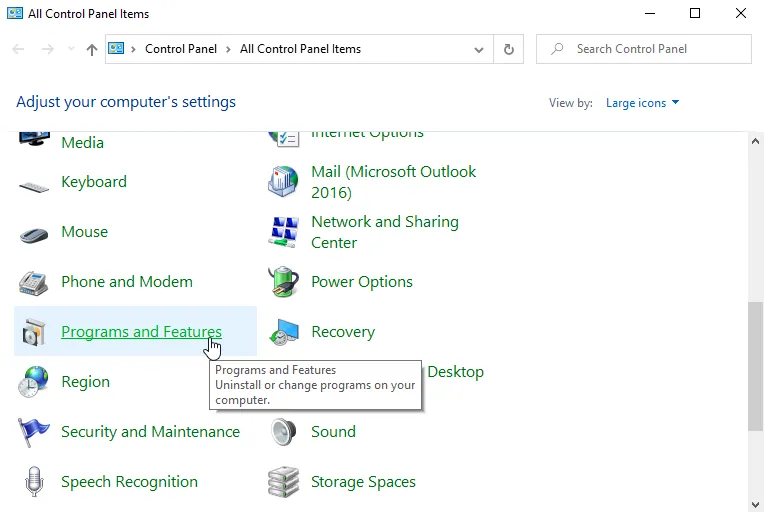
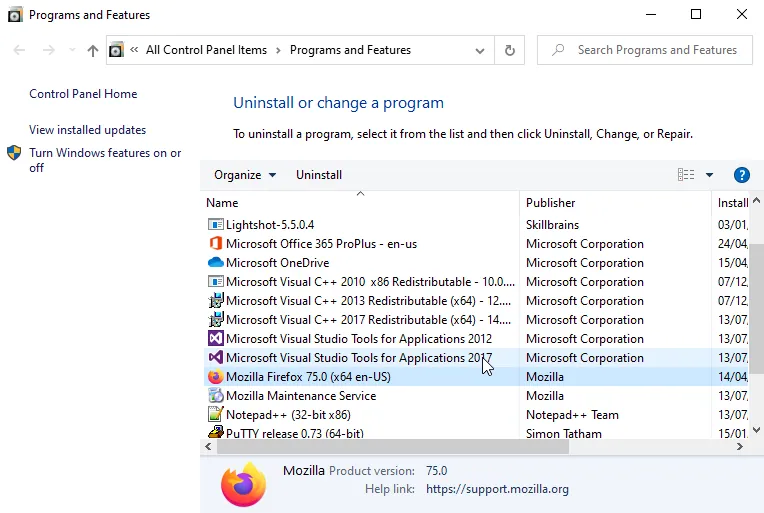
- Open Control Panel from the search bar.
- Click Uninstall a program.
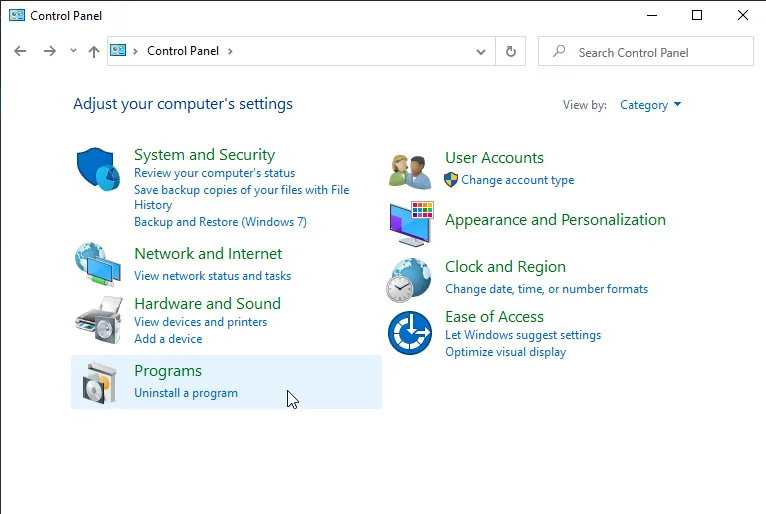
- Select the program you suspect and click Uninstall.
- Restart your computer and check whether the blue screen returns.
3. Check Hardware Compatibility
If the crashes started right after upgrading to Windows 10, some of your hardware may not be fully compatible. Compare your components with Microsoft's Windows 10 requirements and check the manufacturer's site for Windows 10 drivers. Older devices sometimes never received them.
4. Remove Bitdefender, Cisco VPN Client or Other Conflicting Security Software
Users have repeatedly linked the ntfs.sys version of this error to Bitdefender and the Cisco VPN Client, and the bdselfpr.sys version is a Bitdefender driver. If you have either installed, uninstall it and check whether the crashes stop. The same applies to other third-party antivirus programs: removing them is a valid test, because Microsoft Defender takes over automatically.

If removing the antivirus fixes the problem, install the latest version again or choose a different product.
5. Test Your RAM
A faulty memory module is a common hardware cause. Windows has a built-in test:
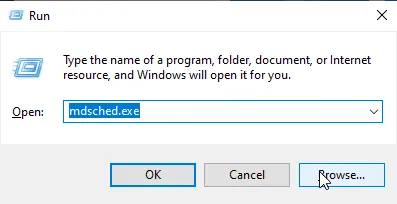
- Press Windows + R, type mdsched.exe and press Enter.
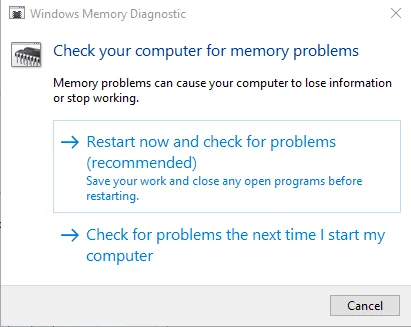
- Choose Restart now and check for problems (or check the next time you start the PC) and let the test run.
If errors are found, you will need to find and replace the faulty module. With more than one stick installed, test them one at a time.
If your computer is still under warranty, take it to an authorized repair shop instead of opening it yourself.
6. Update Your Network Driver (netio.sys)
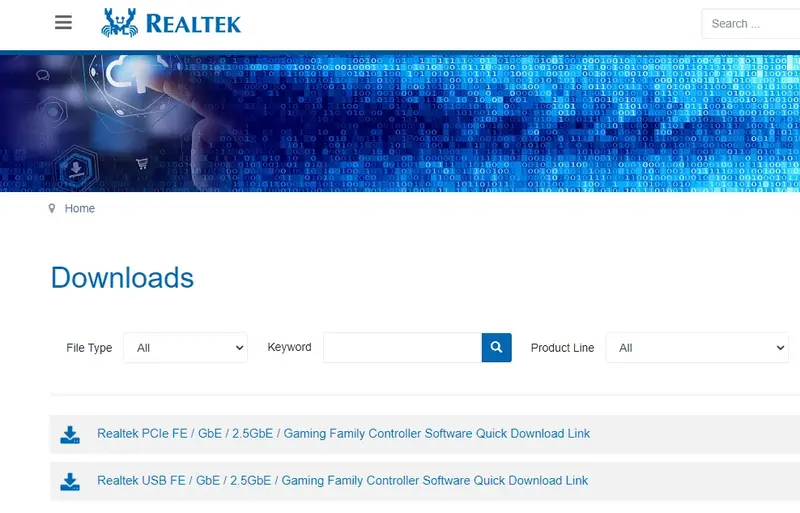
When the blue screen mentions netio.sys, the network adapter driver is usually to blame. Use another device to download the latest driver from your network adapter's manufacturer, copy it over and install it.
7. Update Other Faulty Drivers
Damaged or incompatible drivers can trigger the error from any device, not only the network adapter.
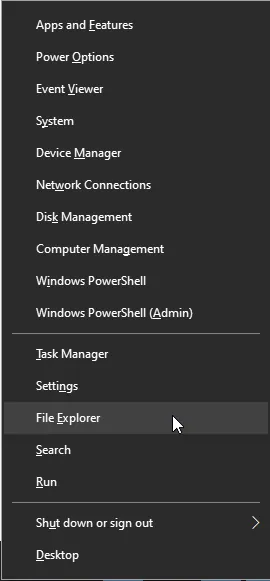
- Press Windows + X and choose Device Manager.
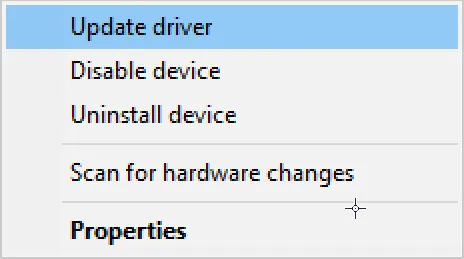
- Look for devices with a yellow warning icon, especially under Other devices. Right-click one and choose Update driver.
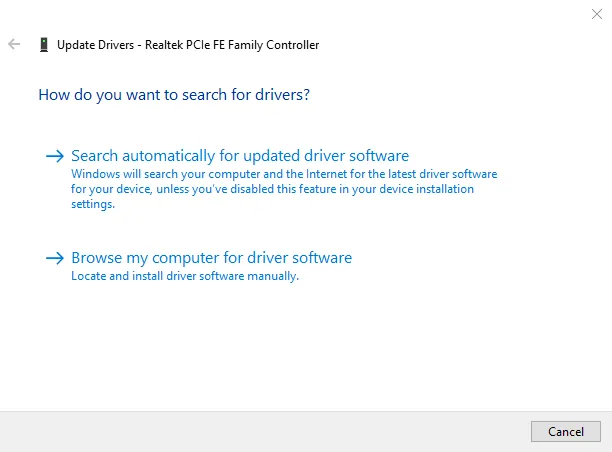
- Click Search automatically for updated driver software and wait for the result.
- Repeat for any other flagged devices, then restart and check whether the error persists.
8. Run System File Checker
Corrupted Windows system files are another common cause. System File Checker finds and repairs them automatically.
- Press the Windows key, type cmd, right-click Command Prompt and choose Run as administrator.
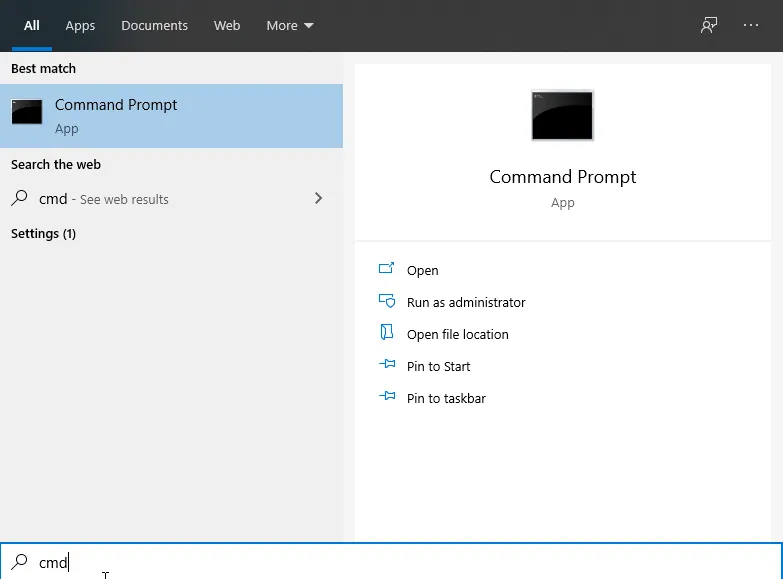
- Type
sfc /scannowand press Enter.
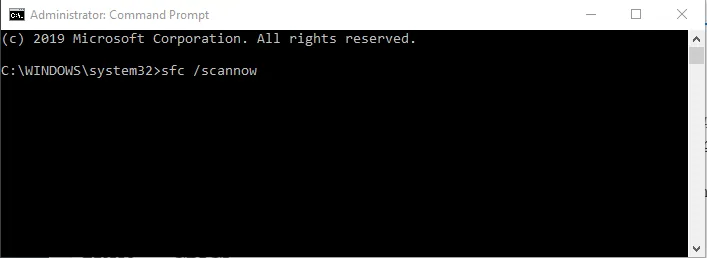
- Wait for the scan to finish. It can take a while. Then restart your computer.
9. Remove Gigabyte ON/OFF
Gigabyte's ON/OFF utility controls the charging power of USB ports. Its driver is outdated and does not work properly with Windows 10, and users have linked it to this error. If you have it installed, uninstall it.

10. Rename the Problem Driver File
If the blue screen names a specific third-party file, such as bdselfpr.sys from Bitdefender, some users fixed the crash by renaming it (for example to bdselfpr.s__) from Safe Mode so Windows can no longer load it. Treat this as a last resort: first check online what the file belongs to and make sure it is not a core Windows file, because renaming the wrong file can make the system less stable. Uninstalling the program that owns the file is always the cleaner option.
11. Update Your BIOS
An outdated BIOS can cause compatibility problems with newer drivers. Download the latest BIOS for your exact motherboard model from the manufacturer's website, and follow the update instructions in its manual.
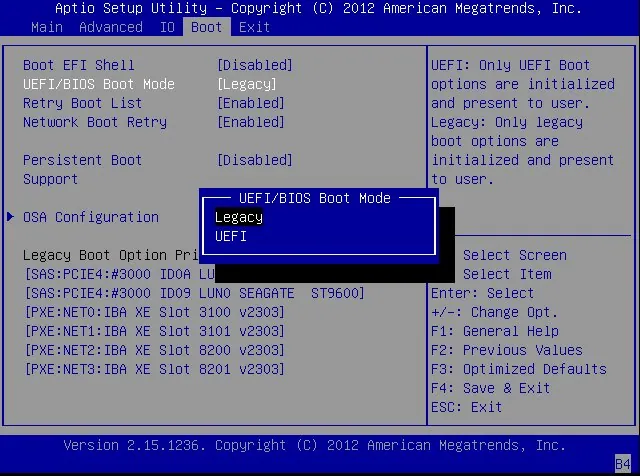
A BIOS update is an advanced procedure. If the power fails or the wrong file is used, the motherboard can be permanently damaged, so only do it if other fixes have failed.
12. Check Your CPU Voltage and Overclocking
If you have overclocked your CPU or memory, return everything to stock settings in the BIOS. A few users fixed the error by setting the CPU voltage manually, but this is an advanced and potentially risky adjustment. Check your motherboard manual and ask an expert before trying it.
Final Thoughts
In most cases, KMODE_EXCEPTION_NOT_HANDLED comes down to a bad driver or a conflicting security program, so the first few fixes solve it for most people. If the error keeps coming back after you have tried everything, test your hardware more thoroughly or consider resetting Windows 10 while keeping your files.
Sources: itechgyan.com, windowsreport.com, connectivasystems.com, drivereasy.com, windowsdigitals.com, 10scopes.com