Spectrum Router IP Address, Login and Default Password
Find the Spectrum router IP address (192.168.0.1), log in to the admin page, change your Wi-Fi name and password, and reset your Spectrum router or modem.
In this article
- How to Log in to a Charter Spectrum Router
- 1. Connect to Your Network
- 2. Open the Spectrum Router IP Address in a Browser
- 3. Enter the Default Login Details
- How to Find Your Spectrum Router Password
- Finding Your Wi-Fi Network Name and Password
- How to Change or Reset Your Wi-Fi Name (SSID) and Password
- Spectrum Router IP Address FAQs
- What is the default Spectrum router IP address?
- Where can I find my Wi-Fi username and password?
- How to Restart or Reset a Spectrum Router or Modem
- Default Usernames and Passwords for Spectrum Modems
To change your Wi-Fi name, set a stronger password or adjust any other router setting, you first need to log in to the router's admin page. For most Spectrum equipment, that means knowing two things: the router's IP address and its login details. This guide covers both, plus the default passwords for the modems Spectrum has handed out over the years.
One piece of advice before you start: if your router is still using its factory username and password, change them. Default logins are published online (including on this page), so anyone on your network could use them.
How to Log in to a Charter Spectrum Router
Whether you are setting up the router for the first time or securing your wireless network, the login process is the same.
1. Connect to Your Network
Use a phone, tablet or computer that is connected to the router, either over Wi-Fi or with an Ethernet cable. You cannot reach the admin page from outside your home network.
2. Open the Spectrum Router IP Address in a Browser
- The default Spectrum router IP address is http://192.168.0.1.
- Type or paste it into your browser's address bar and press Enter.
- If nothing loads, try http://192.168.1.1 instead.
3. Enter the Default Login Details
On the login page, try the most common default Spectrum credentials:
Username: admin
Password: password
If those do not work, try:
Username: user
Password: user
Still no luck? Check the sticker on the bottom or back of the router, or look up your exact model in the table further down. Newer Spectrum-branded routers are often managed through the My Spectrum app instead of a browser page.
How to Find Your Spectrum Router Password
Finding the right login for your specific model takes three steps:
- Find your model number. It is printed on the label of the router or modem. Look for it in the left-hand column of the list at the end of this article.
- Find the username. It is listed next to your model number.
- Find the password. It is listed right below the username.
Finding Your Wi-Fi Network Name and Password
The router's admin login and your Wi-Fi password are two different things. To connect your devices to a secured wireless network, you need the Wi-Fi name (SSID) and the Wi-Fi password. To find them:
- Check the sticker on the bottom or side of the router.
- Check your Wi-Fi setup guide. You or the technician who installed the service may have written the details down there.
- Open the My Spectrum app or log in at spectrum.net, where your network details are usually listed.
How to Change or Reset Your Wi-Fi Name (SSID) and Password
Whether you are setting up Wi-Fi for the first time or just want new details, you can change them from the router's admin page:
- Connect your computer to the router or modem with an Ethernet cable (or over Wi-Fi).
- Open a web browser and go to http://192.168.0.1.
- Log in with the username and password from the packaging, the router label or the list below.
- Look for the Wi-Fi settings. Depending on the model, the section may be called Network, Wireless, Wi-Fi Network Name, SSID or WPA Pre-Shared Key. They all refer to the same thing.
- Enter the new network name and password and save your changes. Every device will need to reconnect using the new details.
Spectrum Router IP Address FAQs
What is the default Spectrum router IP address?
Most Spectrum routers use 192.168.0.1, and some use 192.168.1.1. If neither works, you can find the exact address on your PC: press Windows + R, type cmd and press Enter, then type ipconfig and press Enter. The router's address is the one shown next to Default Gateway.
This is the router's internal address. Its public address on the internet is assigned by Spectrum and is different for every customer; you can see it by searching "what is my IP" in any search engine.
Where can I find my Wi-Fi username and password?
Start with the router's make and model number. The Wi-Fi details are usually printed on the router itself or included in the box. If not, use the model number with the steps in this guide to log in and view or change them.
How to Restart or Reset a Spectrum Router or Modem
A power cycle fixes most slow or dropped connections and does not erase any of your settings:
- Unplug the power cable from the back of the modem. If it has a backup battery, remove that too.
- Unplug the power cable from your Wi-Fi router.
- Wait about 30 seconds, then reinsert the battery and plug the modem back in.
- Give the modem about 2 minutes to start up. Wait until none of its lights are blinking.
- Plug the router back in and wait another 2 minutes for it to come online.
- Check whether the connection works. If not, a full factory reset (holding the recessed Reset button for about 15 seconds) restores the default login and Wi-Fi details, or you can contact Spectrum support.
Default Usernames and Passwords for Spectrum Modems
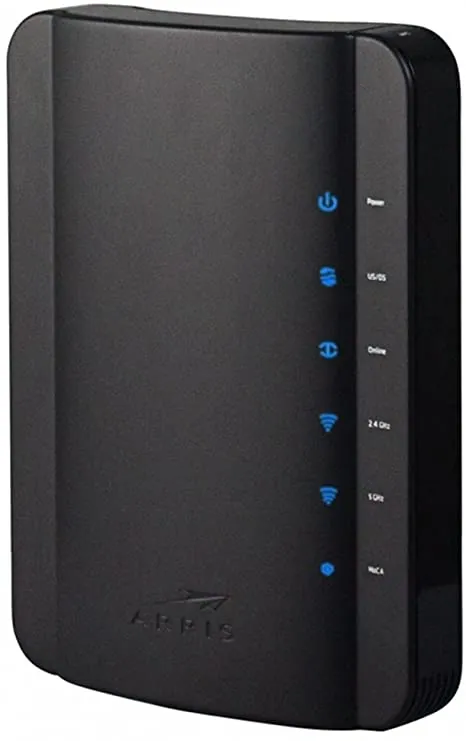
Arris DG1670A: username admin, password password
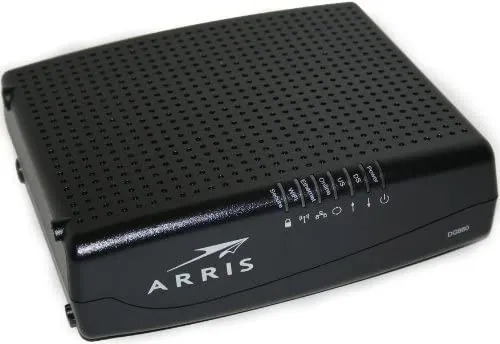
Arris DG860A: username admin, password password
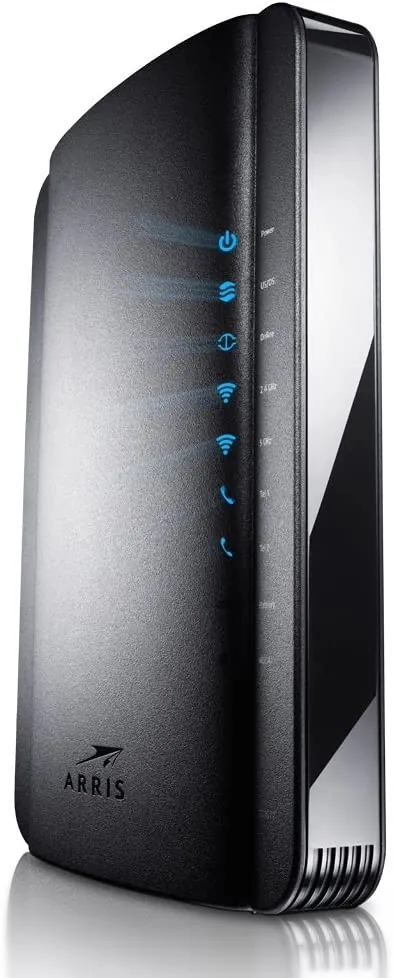
Arris TG1672G: username admin, password password
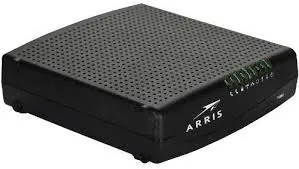
Arris TG852G: username admin, password password
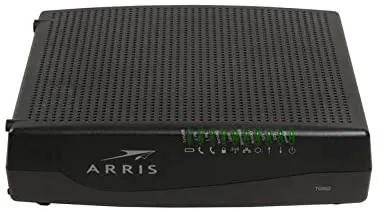
Arris TG862G: username admin, password password
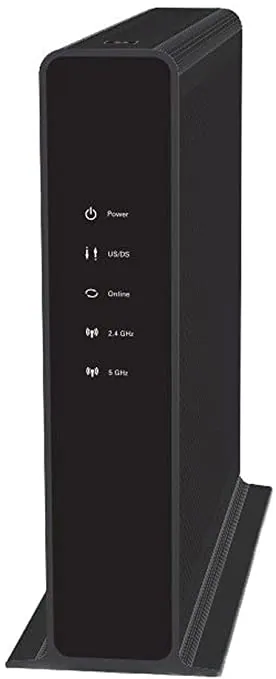
Technicolor / Thomson / RCA TCM8715D: username admin, password password
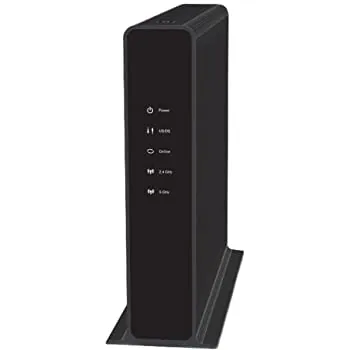
Technicolor / Thomson / RCA TC8717T: username admin, password password
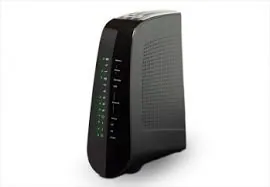
Technicolor / Thomson / RCA DWG875A: no username required, password admin
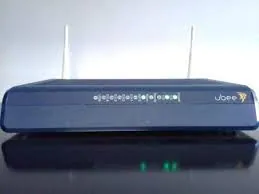
Ubee / Ambit DDW3611: username user, password user
Sources: spectrum.net, portforward.com, router-login.org