DNS Address Could Not Be Found in Chrome: How to Fix It
Fix the "DNS address could not be found" error in Google Chrome: clear the host cache, flush DNS, change your DNS servers and clean the etc folder.
In this article
You type a web address into Chrome, press Enter, and instead of the page you get a gray screen that says "Server DNS address could not be found" (sometimes shown as DNS_PROBE_FINISHED_NXDOMAIN). Other apps may still work, which makes the error even more confusing. The good news is that it is almost always a local problem on your PC or network, and it can usually be fixed in a few minutes.
What the Error Means
Every website has a numeric IP address, but nobody wants to memorize numbers, so we use domain names such as ilmiah.id instead. A DNS (Domain Name System) server works like a phone book: when you enter a domain, your computer asks the DNS server which IP address belongs to it, then connects to that address.
When Chrome shows this error, that lookup failed. Chrome asked for the address and never got a usable answer. The cause is usually one of these:
- A corrupted or outdated DNS cache in Windows or in Chrome
- Wrong entries in the Windows hosts file
- Your internet provider's DNS server being slow or down
- Incorrect network adapter settings
- The website being blocked by your provider
Work through the fixes below in order and test Chrome after each one. Most people do not need to try them all.
Reset the Windows Hosts File
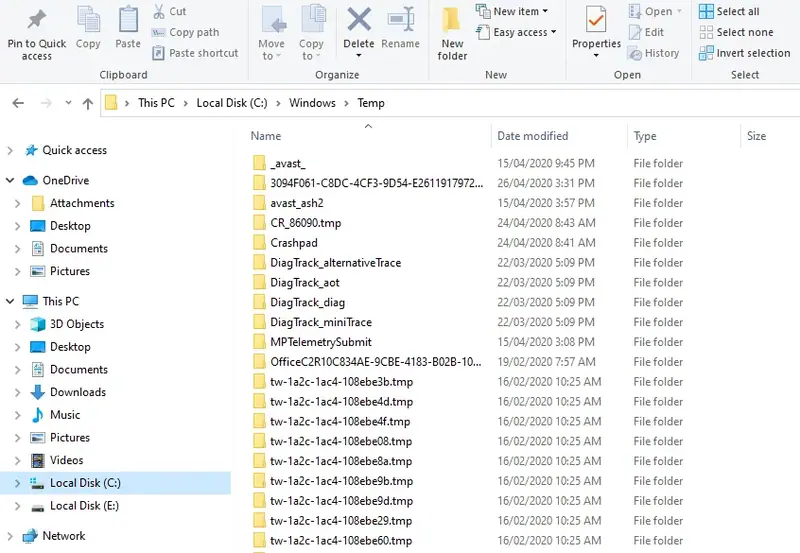
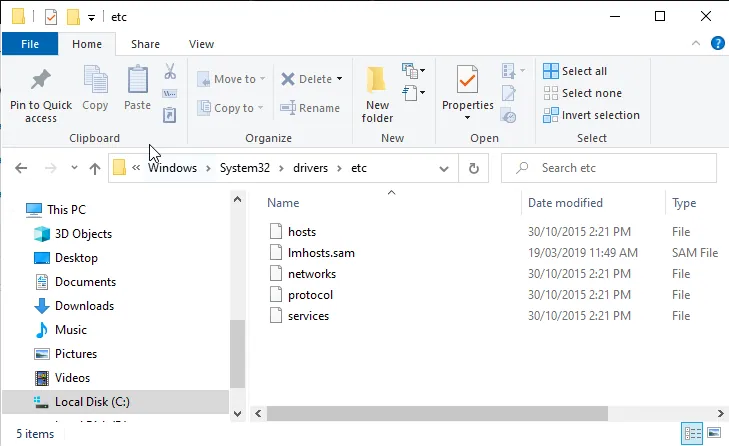
The hosts file in C:\Windows\System32\drivers\etc lets Windows map domain names to IP addresses before it asks a DNS server. Adware and badly written software sometimes add entries here that send websites to the wrong place. Do not delete the whole folder; just reset the hosts file:
- Open File Explorer and go to C:\Windows\System32\drivers\etc.
- Copy the hosts file to your desktop as a backup.
- Open Notepad as administrator, choose File > Open, and open the hosts file (set the file type to All Files so it shows up).
- Delete every line that does not start with
#, save the file, and try Chrome again.
Clear Chrome's Host Cache
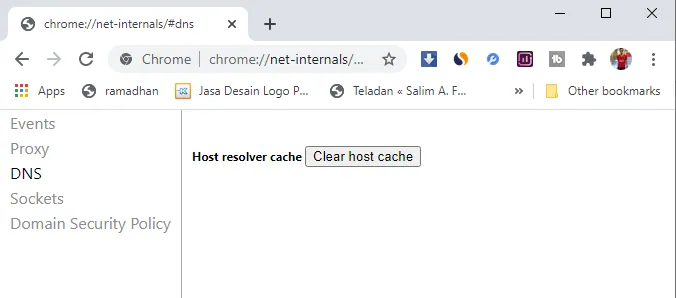
Chrome keeps its own DNS cache. If an entry in it is corrupted, Chrome keeps using the bad address even after the real problem is gone. Clearing it takes ten seconds:
- Type
chrome://net-internals/#dnsin the address bar and press Enter. - Click Clear host cache.
- Reload the page that showed the error.
Change Your DNS Server Settings
If your provider's DNS server is unreliable, switching to a public DNS service often fixes the error immediately. Google Public DNS and Cloudflare are both free.
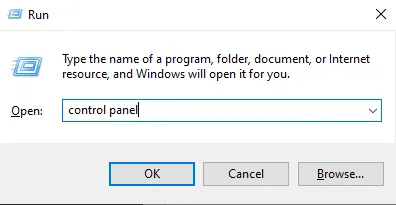
- Press Windows + R, type control panel and click OK.
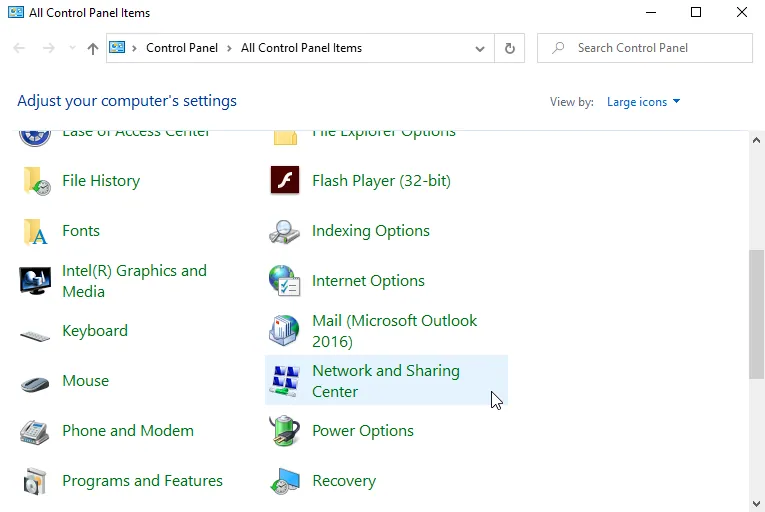
- Set View by to Small icons and open Network and Sharing Center.
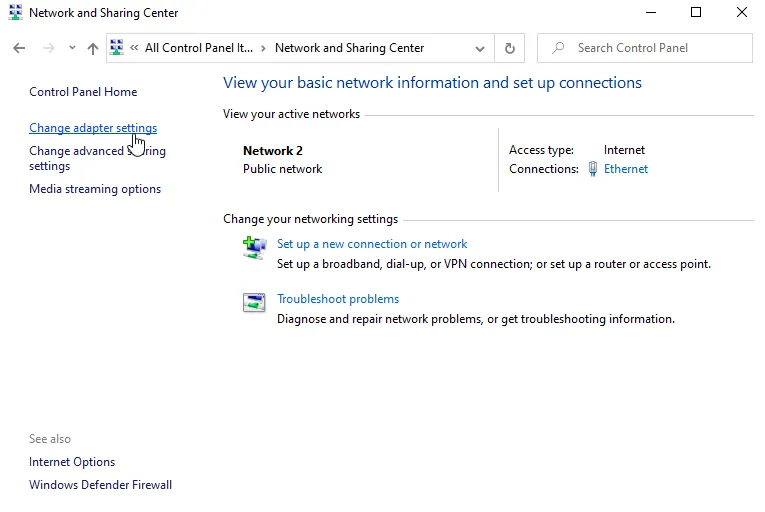
- Click Change adapter settings in the left pane.
- Right-click the connection you use (Ethernet or Wi-Fi) and choose Properties.
- Select Internet Protocol Version 4 (TCP/IPv4) and click Properties.
- On the General tab:
- If Obtain DNS server address automatically is not selected, select it and click OK. A manual DNS entry may be the problem.
- If it is already selected, choose Use the following DNS server addresses and enter 8.8.8.8 as the preferred server and 8.8.4.4 as the alternate server (or 1.1.1.1 and 1.0.0.1 for Cloudflare). Click OK.
- Close the windows and test Chrome.
Flush and Renew the DNS Cache
Windows remembers the IP addresses of sites you visit so they load faster next time. If that cache goes stale, flushing it forces Windows to look everything up again.
- Press Windows + R and type cmd.
- Press Ctrl + Shift + Enter to open Command Prompt as administrator. (Pressing Enter on its own opens it without admin rights.)
- Run these commands one at a time, pressing Enter after each:
ipconfig /flushdns
ipconfig /renew
ipconfig /registerdns
- Restart your PC and check whether the error is gone.
Try a VPN
If the error appears only on certain websites, your internet provider may be blocking them at the DNS level. A reputable VPN routes your traffic, including DNS lookups, through its own servers, which gets around this kind of block. Choose a well-known paid service with a clear no-logs policy, install it, connect to a server, and reload the site. Avoid free VPN apps of unknown origin; they are a common source of adware.
Still not Working?
Restart your router by unplugging it for 30 seconds, update your network adapter driver, and temporarily disable any third-party firewall to see whether it is interfering. If every device on your network shows the same error, the problem is with your router or provider, and a call to your provider is the next step.