Task Manager Shortcut: 11 Ways to Open Task Manager in Windows 10
Open Task Manager fast with Ctrl+Shift+Esc and 10 other methods in Windows 10, plus a quick tour of every Task Manager tab and what it shows you.
In this article
- The Task Manager Tabs Explained
- The Simple View
- 11 Ways to Open Task Manager in Windows 10
- 1. Ctrl + Shift + Esc
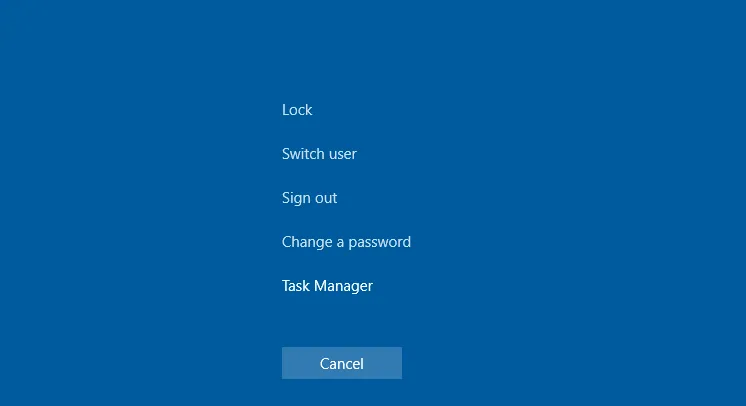
- 2. Ctrl + Alt + Del
- 3. The Win + X Power User Menu
- 4. The Start Menu
- 5. Windows Search
- 6. Run Taskmgr.exe Directly
- 7. A Desktop Shortcut
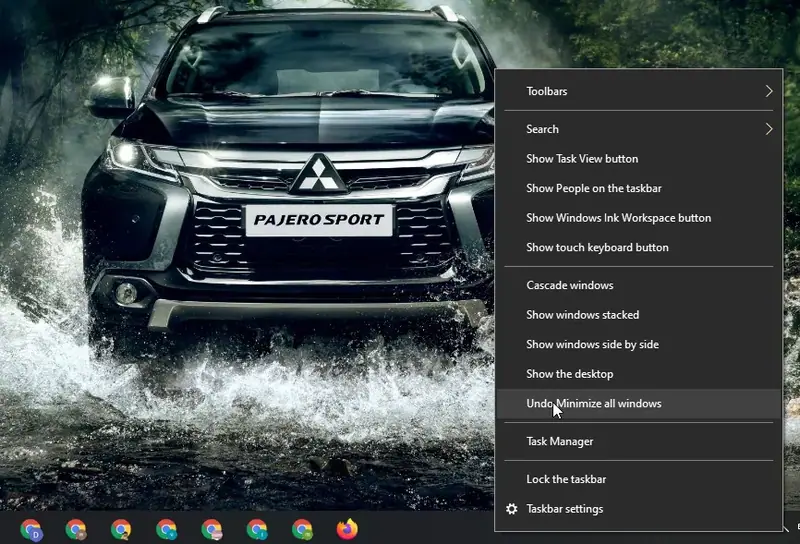
- 8. The Taskbar Right-Click Menu
- 9. Command Prompt or PowerShell
- 10. The Run Window
- 11. The File Explorer Address Bar
- Which Method Should You Use?
Task Manager is one of the most useful tools in Windows. It shows exactly what your PC is doing, from overall resource usage down to detailed statistics for every running process, and it is the first place to go when a program freezes or the computer slows to a crawl. This guide explains what each part of Task Manager does and then shows you 11 different ways to open it.
We focus on Windows 10, but much of this also applies to Windows 7, although Task Manager has improved a lot since then.
The Task Manager Tabs Explained
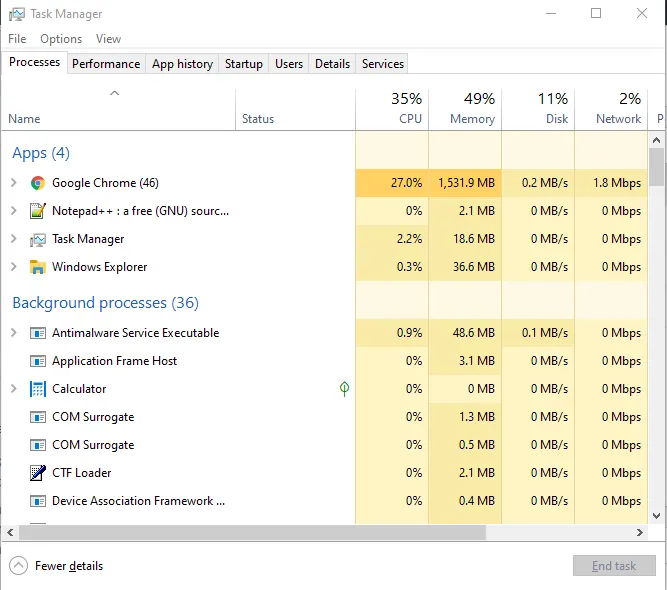
The first time you open Task Manager, you see a small, simple window. Click More details at the bottom to switch to the full view with tabs. Task Manager remembers your choice and opens in this view from then on; click Fewer details to go back.
In the full view, you get these tabs:
- Processes: all running apps and background processes, with their CPU, memory, disk, network and GPU usage.
- Performance: live graphs of total CPU, memory, disk, network and GPU usage, plus details such as your IP address and the model names of your CPU and graphics card.
- App history: how much CPU time and network data apps have used on your account. This only covers Microsoft Store (UWP) apps, not traditional desktop programs.
- Startup: the programs that start automatically when you sign in. You can disable them here or under Settings > Apps > Startup.
- Users: the accounts signed in to the PC, how many resources each is using and which apps they are running.
- Details: more detailed information about every process. This is essentially the old Processes tab from Windows 7.
- Services: the system services and their status, the same information you see in the Services console (services.msc).
The Simple View
The compact view lists only the visible apps on your desktop, without background processes. Select an app and click End task to close it. That is the quickest way to deal with a frozen program that will not close normally.
Right-click an app in this view for more options:
- Switch to: brings the app's window to the front. Handy when you are not sure which window belongs to which app.
- End task: closes the process, just like the End task button.
- Run new task: opens the Create new task window, where you can launch a program, folder, file or web address.
- Always on top: keeps Task Manager above all other windows so you can watch it while you work.
- Open file location: opens File Explorer at the program's .exe file.
- Search online: runs a Bing search for the program and file name, useful for finding out what an unfamiliar process is.
- Properties: opens the .exe file's Properties window, where you can see the version number or change compatibility settings.
While Task Manager is open, a small icon in the notification area shows current CPU usage; hover over it to see memory, disk and network usage too. To keep only that tray icon, choose Options > Hide when minimized in the full view and minimize the window.
11 Ways to Open Task Manager in Windows 10
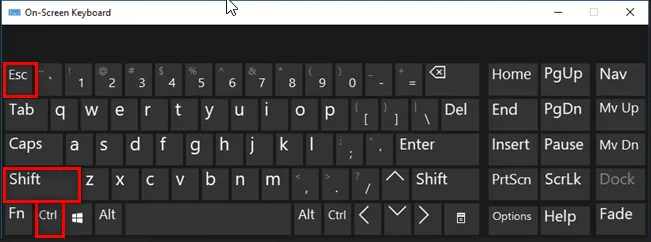
1. Ctrl + Shift + Esc
The fastest Task Manager shortcut of all: press Ctrl + Shift + Esc together and it opens immediately.
2. Ctrl + Alt + Del
Press Ctrl + Alt + Del to open the security screen, then click Task Manager. This one also works when the desktop is unresponsive.
3. The Win + X Power User Menu
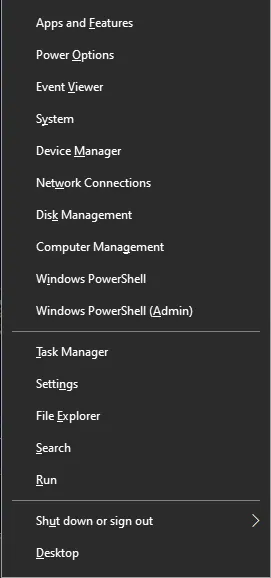
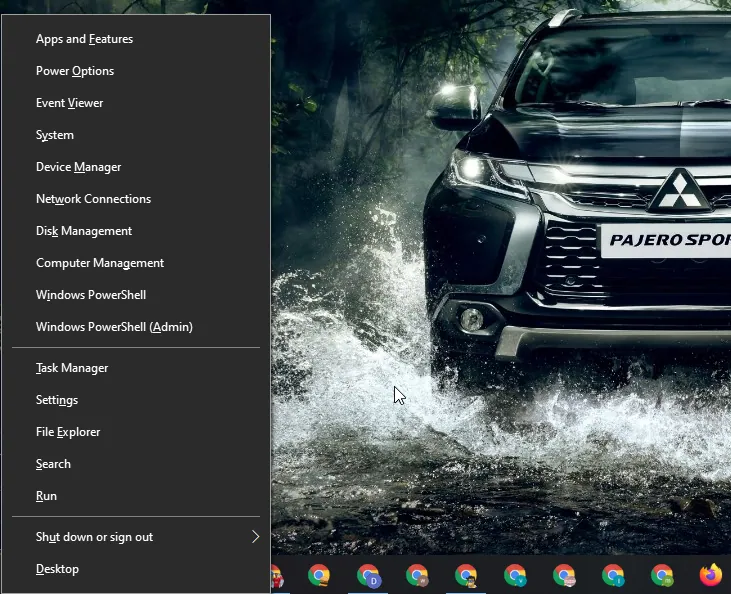
Press Win + X and then T, or click Task Manager in the menu. With a mouse, right-click the Start button to open the same menu.
4. The Start Menu
Open the Start menu, scroll through the app list to the Windows System folder and click Task Manager.
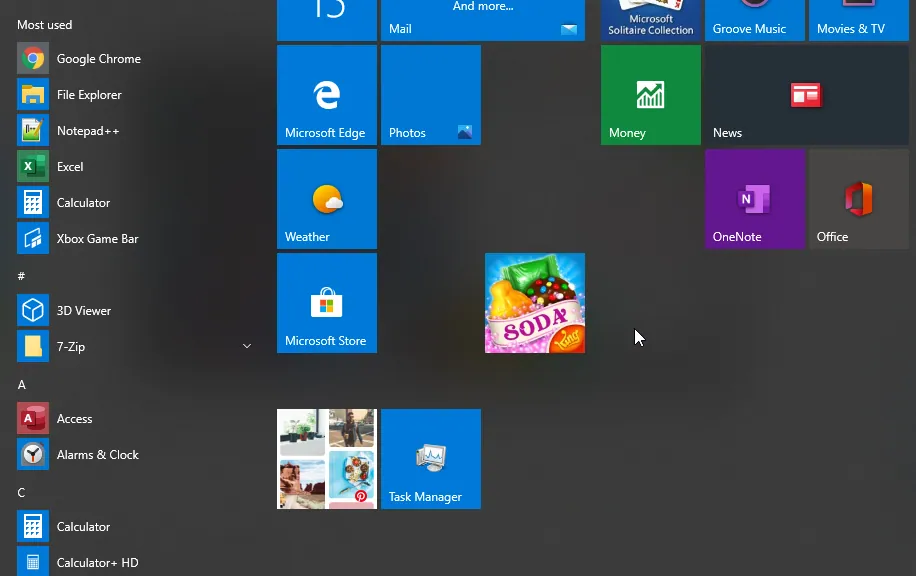
To pin it as a tile for even faster access:
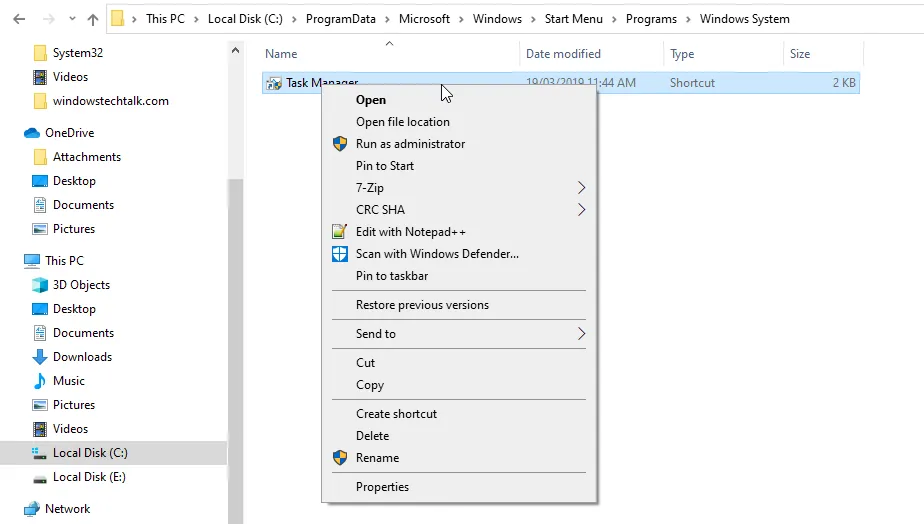
- Press Win + E and go to C:\ProgramData\Microsoft\Windows\Start Menu\Programs\System Tools.
- Right-click the Task Manager shortcut.
- Click Pin to Start.
5. Windows Search
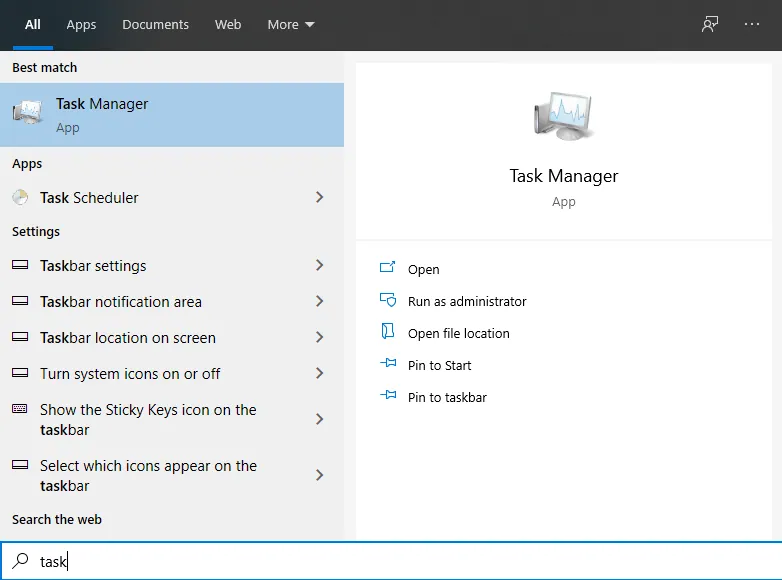
Click the search box on the taskbar and type task. Task Manager should be the first result; click it or press Enter. You can also ask Cortana to "open Task Manager."
6. Run Taskmgr.exe Directly
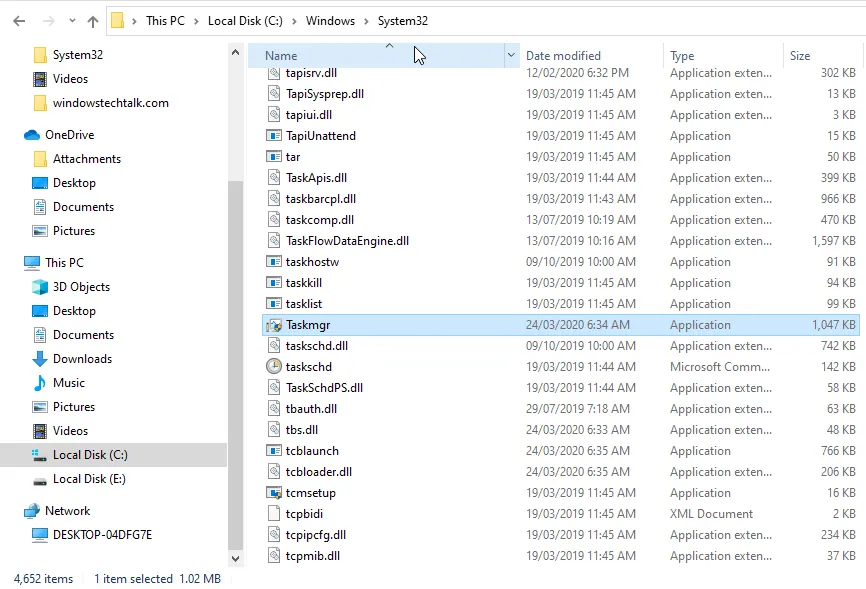
Task Manager's program file is Taskmgr.exe, located in C:\Windows\System32. Double-click it to open Task Manager.
7. A Desktop Shortcut
Right-click the desktop, choose New > Shortcut, enter taskmgr as the location and name it "Task Manager." You now have a one-click shortcut on your desktop.

8. The Taskbar Right-Click Menu
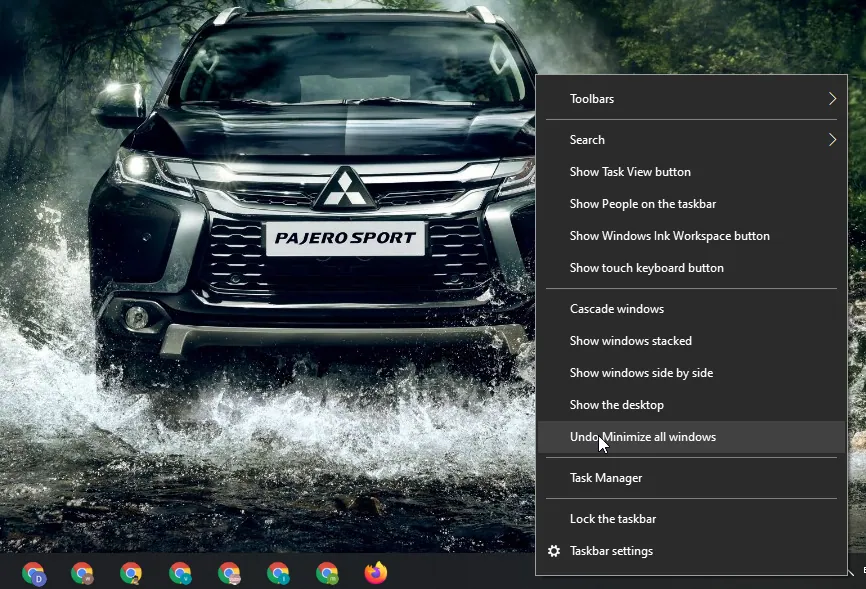
Right-click (or press and hold) an empty part of the taskbar. The menu that appears includes Task Manager.
9. Command Prompt or PowerShell
If you prefer the command line, press Win + X, open PowerShell (or Command Prompt), type taskmgr and press Enter.
10. The Run Window
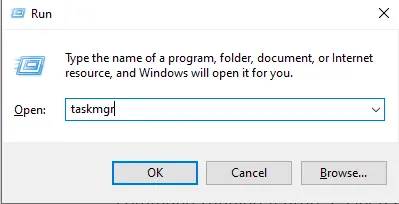
Press Win + R, type taskmgr and press Enter or click OK.
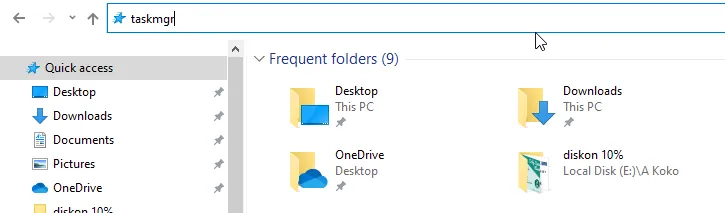
11. The File Explorer Address Bar
File Explorer can run commands too. Open File Explorer, type taskmgr in the address bar and press Enter.
Which Method Should You Use?
For everyday use, Ctrl + Shift + Esc is hard to beat. When the system is frozen, Ctrl + Alt + Del is the most reliable. The other methods are handy alternatives when your hands are already on the mouse or you are working in a command window. Knowing several of them means you can always get to Task Manager, whatever state your PC is in.
Sources: digitalcitizen.life, thewindowsclub.com, howtogeek.com