How to Strikethrough in Google Docs (Shortcut and Menu)
Cross out text in Google Docs with Alt+Shift+5 on Windows, Cmd+Shift+X on Mac, or the Format menu, and learn when strikethrough text is the right choice.
In this article
Bold, italic and underline are the formatting options everyone uses in Google Docs and Microsoft Word. Strikethrough, which draws a line through text like this, is used far less often, but it is surprisingly useful once you know how to apply it. In Word, the button sits right next to underline. In Google Docs it is a little more hidden, so here are two quick ways to find it.
When to Use Strikethrough Text
Strikethrough is not something you need every day, but it is the right tool in a few situations:
- Correcting published text. If you need to change details in an article or post, striking out the old information instead of deleting it shows readers exactly what changed.
- Checking off a to-do list. If you keep a task list in Google Docs, crossing items out instead of deleting them shows what you have finished and gives you a satisfying record of the day's work.
- Tone and humor. Writers also use a crossed-out word to suggest what they really meant, often for comic or sarcastic effect.
Strikethrough Keyboard Shortcut in Google Docs
Keyboard shortcuts are the fastest way to format text, and Google Docs has one for strikethrough. It differs by operating system:
- Windows:
Alt + Shift + 5 - Mac:
Command + Shift + X - Linux and Chromebook:
Alt + Shift + 5
You can either select existing text and press the shortcut, or press it before you type and again when you are done. If neither shortcut works on your computer, open Format > Text; the correct shortcut is shown next to Strikethrough.
Why Keyboard Shortcuts Are Worth Learning
A few seconds saved each time adds up quickly. Shortcuts help you:
- Get repetitive tasks done faster and with less effort
- Save your work constantly without thinking about it (
Ctrl + S) - Stay focused on writing instead of hunting through menus
- Reach features instantly, without the toolbar
That is why we recommend the shortcut for strikethrough. Still, the menu method below works just as well if you only need it occasionally.
How to Strikethrough Using the Format Menu
If shortcuts are not your thing, you can apply strikethrough from the menu, much as you would in Word:
- Open the document in Google Docs.
- Select the text you want to cross out.
- Click Format in the menu bar.
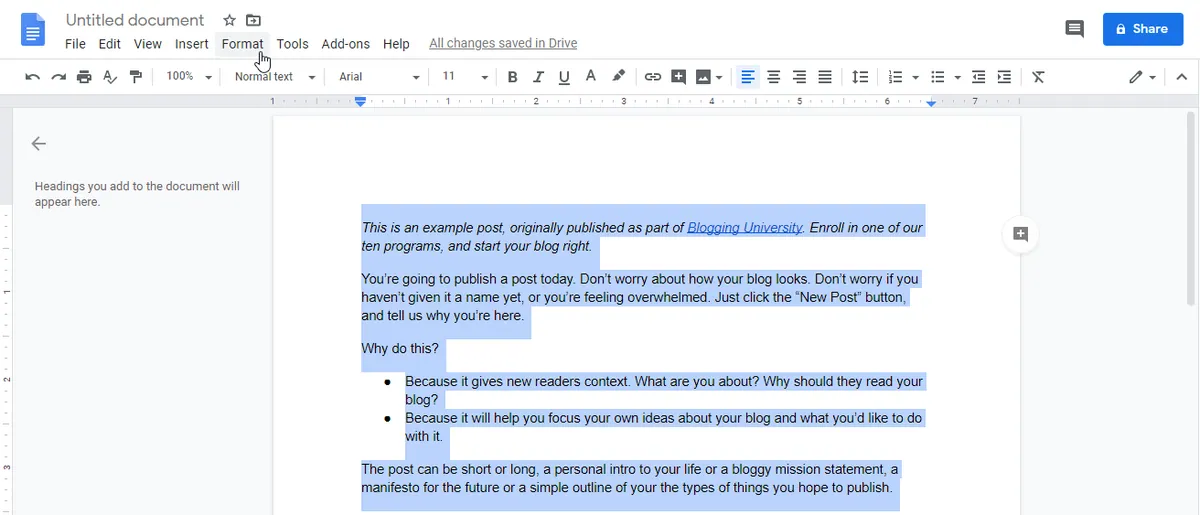
- Point to Text.
- Click Strikethrough.
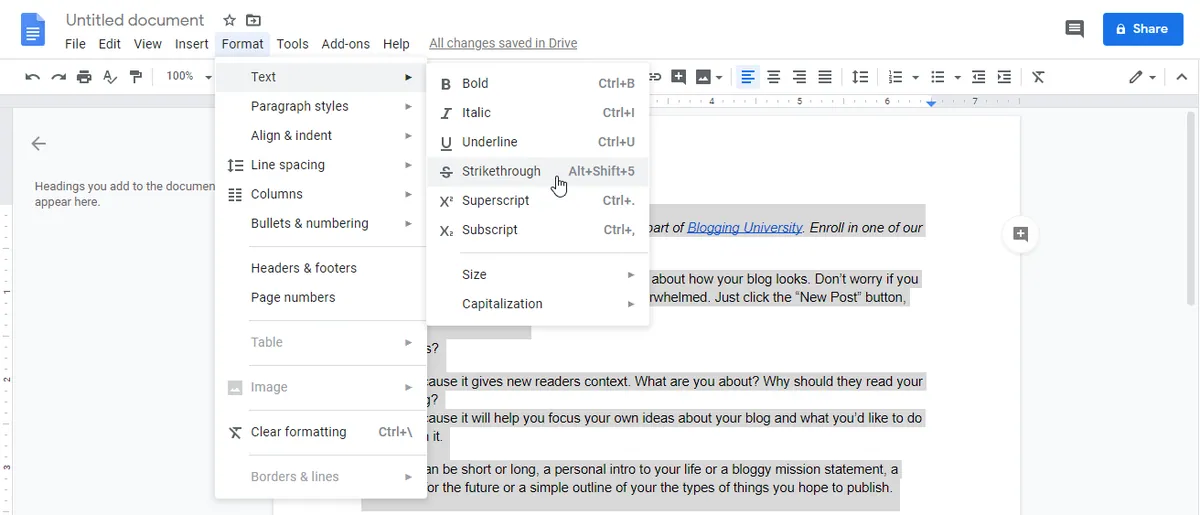
Repeat for each piece of text. If you need strikethrough many times in one document, the keyboard shortcut will save you a lot of clicks.
Tip: strikethrough works as a toggle, just like bold and italic. If you keep typing right after struck-through text, the new text will be crossed out too. Press the shortcut again (or select the menu option again) to switch it off.
Google Docs vs. Microsoft Word
For years, Microsoft Word was the undisputed leader among word processors, and many people still default to it. Google Docs has since become a serious competitor. Each has its own strengths.
Advantages of Microsoft Word
- Familiar and easy to navigate. The ribbon tabs are logically organized, and most people already know where everything is.
- Works with many file formats. Word can open and save documents in a wide range of formats, which makes sharing across different computers and systems easy.
- Constantly improving. Microsoft regularly adds new features to the Office apps and improves existing ones.
- Often free for students. Many schools and universities provide Microsoft 365 at no cost through a student email account; otherwise, it requires a subscription.
Popularity plays a big part in Word's success. Almost everyone has used it, so it feels comfortable, and many people see no reason to switch.
Advantages of Google Docs
- Completely free. Like Google Drive, Docs costs nothing, and your documents are saved to your Drive storage automatically.
- Available anywhere. Docs runs in your browser, so there is nothing to install. Sign in to your Google account on any device and all your documents are there.
- Automatic saving. Every change is saved to Google Drive as you type, so there are no lost files or forgotten USB sticks.
- Easy sharing and collaboration. Change the sharing settings, send a link, and others can view or edit the document with you in real time.
Strikethrough is a little harder to find in Google Docs than in Word, but with the shortcut above, applying it takes only a second.
Final Words
If you use strikethrough regularly, memorize the shortcut: Alt + Shift + 5 on Windows, Linux and Chromebook, or Command + Shift + X on a Mac. If you only need it now and then, Format > Text > Strikethrough works perfectly well.