SHAREit for PC: How to Download, Install and Transfer Files
Download SHAREit for PC and send photos, videos and documents between Windows, Android and iPhone over Wi-Fi, with a step-by-step install and sharing guide.
In this article
SHAREit is a file-sharing app that moves photos, videos, music and documents between devices without cables or an internet connection. It is a direct alternative to Bluetooth, USB cables and NFC, and it is much faster than Bluetooth.
It works across platforms, including Windows, macOS, Android and iOS, so you can send files from your phone to your PC and back. The developer reports more than 1.5 billion users worldwide, and for years it was one of the most downloaded apps on Google Play.
Minimum requirements for SHAREit on PC:
- Operating system: Windows 7, 8, 8.1 or 10
- Disk space: about 6.15 MB
- Official download: ushareit.com
This guide shows you how to download and install SHAREit on your PC and use it to transfer files. (If your PC cannot get online to download it, see our guide to fixing Windows 10 No Internet Access.)
A note on security: security researchers have reported vulnerabilities in some versions of SHAREit, and the app shows ads. Download it only from the official website or app stores, keep it updated, and turn off its hotspot when you are not using it.
What is SHAREit?
SHAREit is a feature-packed file-sharing app, and the mobile version also includes a built-in music player. Besides photos, music and videos, you can use it to transfer contacts, Word documents, APK files, ZIP archives and almost any other file type.
How Does SHAREit Work?
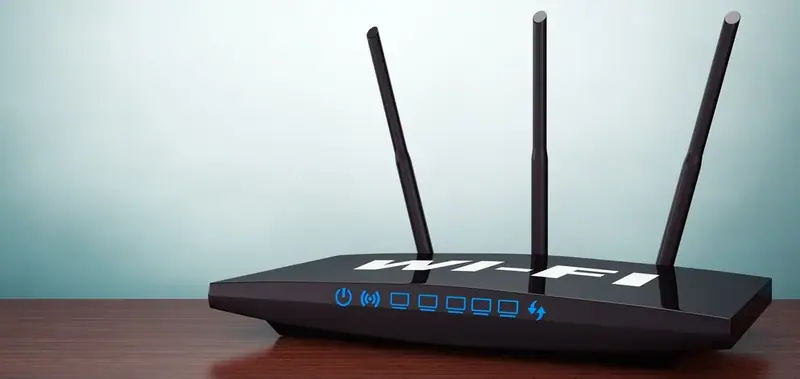
SHAREit uses Wi-Fi Direct. Instead of going through your router or the internet, it connects devices directly over their Wi-Fi radios. One device creates a small hotspot inside the app, the other device connects to it, and files are sent peer to peer. That is why it works without an internet connection and is so much faster than Bluetooth.
How to Download SHAREit for PC
Download SHAREit from the official website, ushareit.com. Choose Windows as your operating system and click Download. Well-known download sites such as FileHippo also carry it, but the official site is the safest source.
When your browser asks where to save the installer, pick any folder you like.
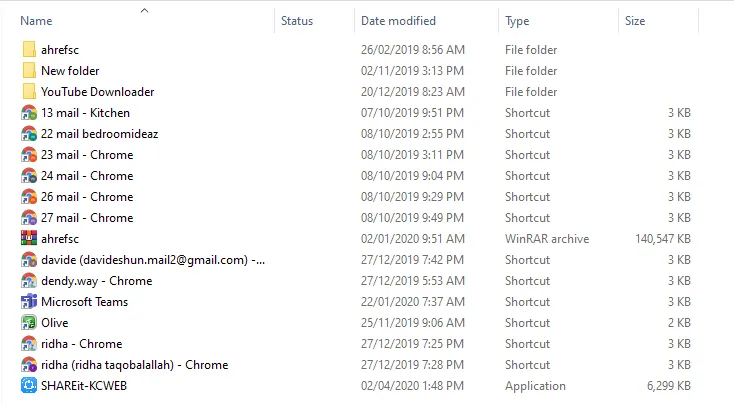
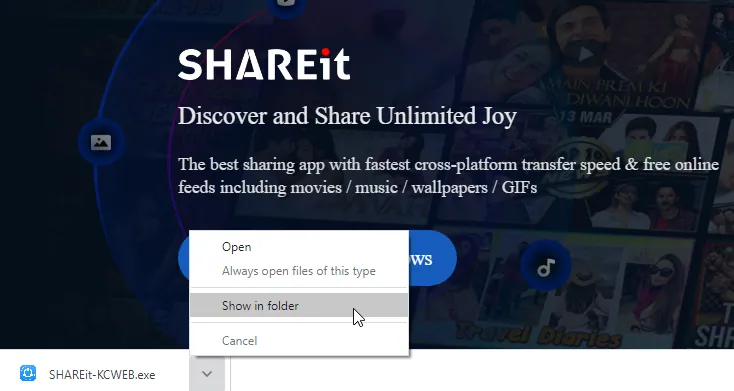
When the download finishes, click the small arrow next to the download in your browser and choose Show in folder to find the installer.
How to Install SHAREit on Windows
- Double-click the SHAREit installer in the folder.
- Windows shows a security warning asking you to confirm. This is normal for any downloaded program; click Run.
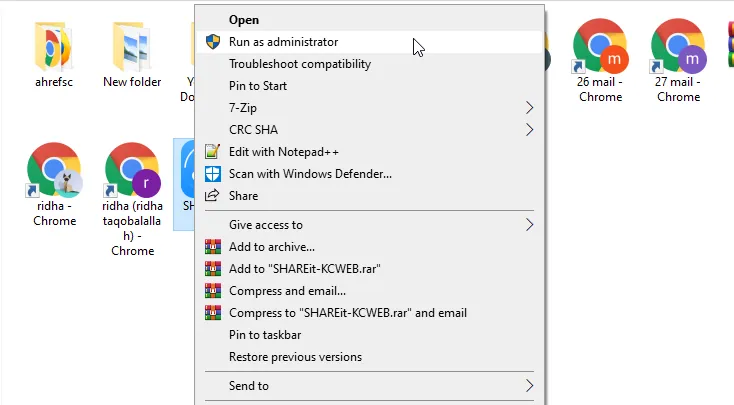
- When User Account Control asks whether to allow the app to make changes, click Yes.
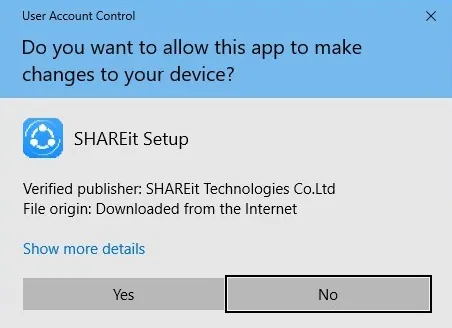
- Read the license agreement and click Accept.
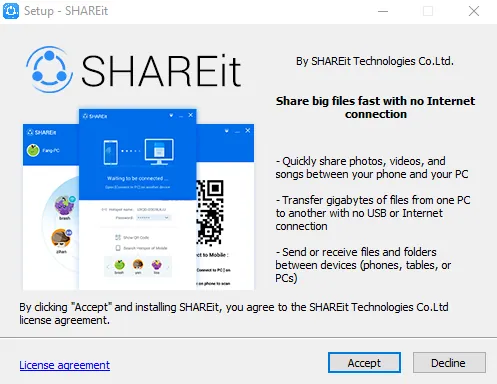
- Choose where to install the program. The default folder on drive C is fine, but you can pick another. Tick Create a desktop shortcut if you want one, then click Next.
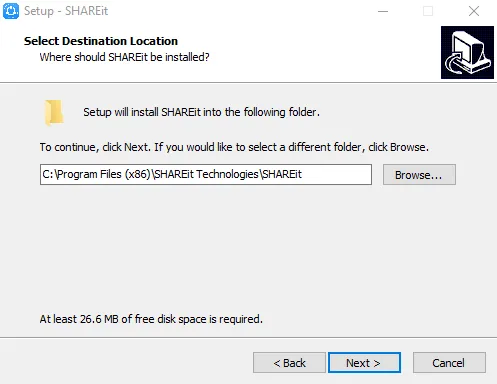
- Installation only takes a moment.
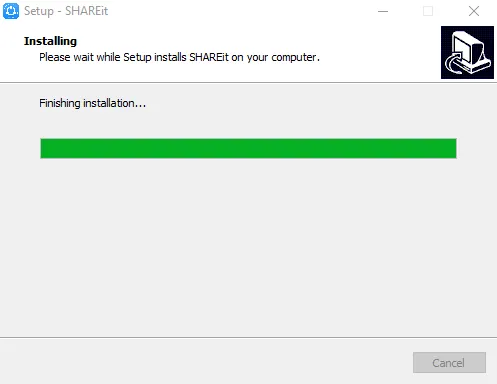
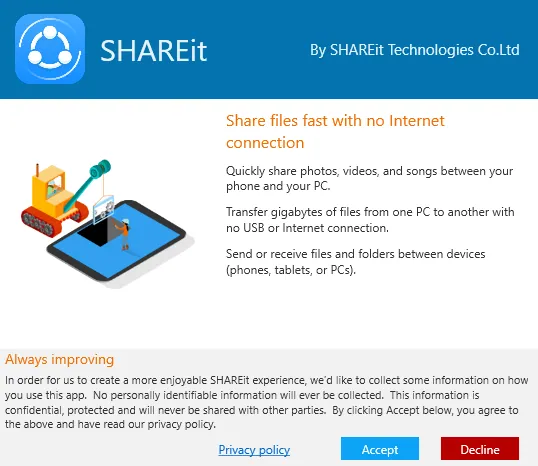
- Click Finish. SHAREit starts and asks you to accept its privacy policy; click Accept to continue.
Setting Up SHAREit on Your PC
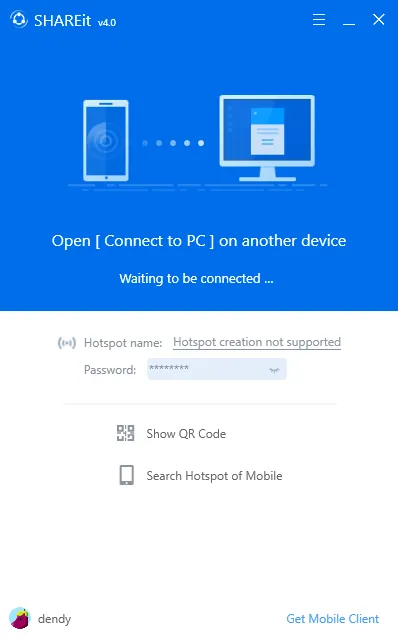
When SHAREit opens, it shows that your computer is waiting for another device to connect.
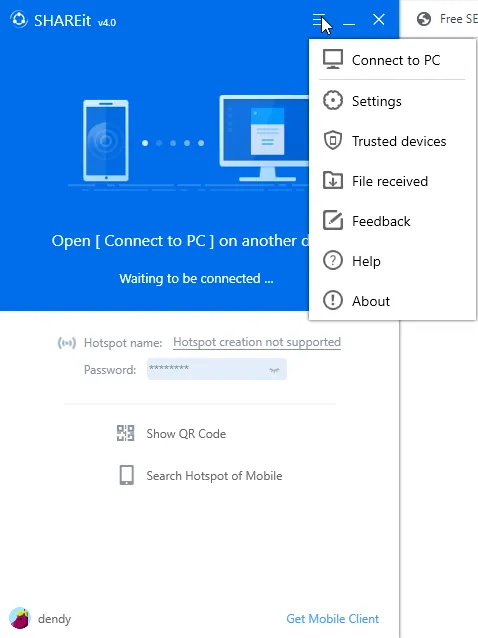
Click the menu icon (three lines) in the top-right corner and open Settings. Here you can set your display name, hotspot password, avatar and the folder where received files are saved. The same menu has Help, About and Feedback options, plus Connect to PC for linking two computers. In most cases, the default hotspot settings work fine and you can connect straight away.
How to Share Files Between Your Phone and PC
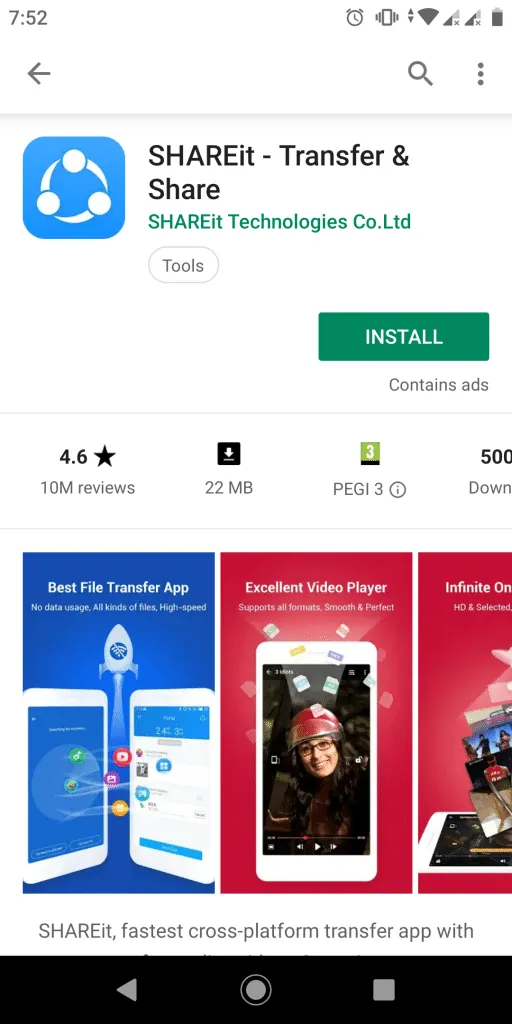
With the PC ready, install SHAREit on the other device. In this example we use an Android phone, so we install the app from the Google Play Store.
- Open SHAREit on your phone and tap Start. Choose a username and an avatar.
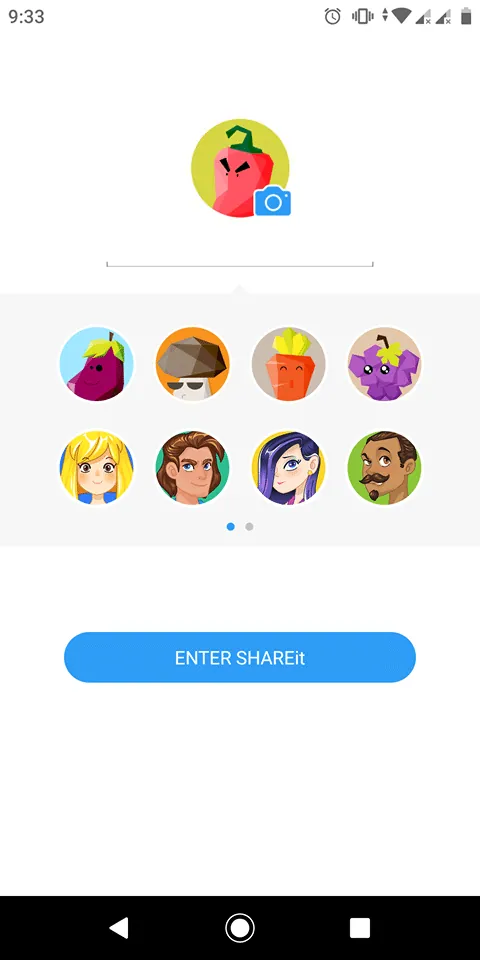
Image source: techloris.com - Tap the icon in the top-right corner and choose Connect PC.

Image source: techloris.com - You now have two ways to connect. Either way, SHAREit must be open on both the phone and the PC.
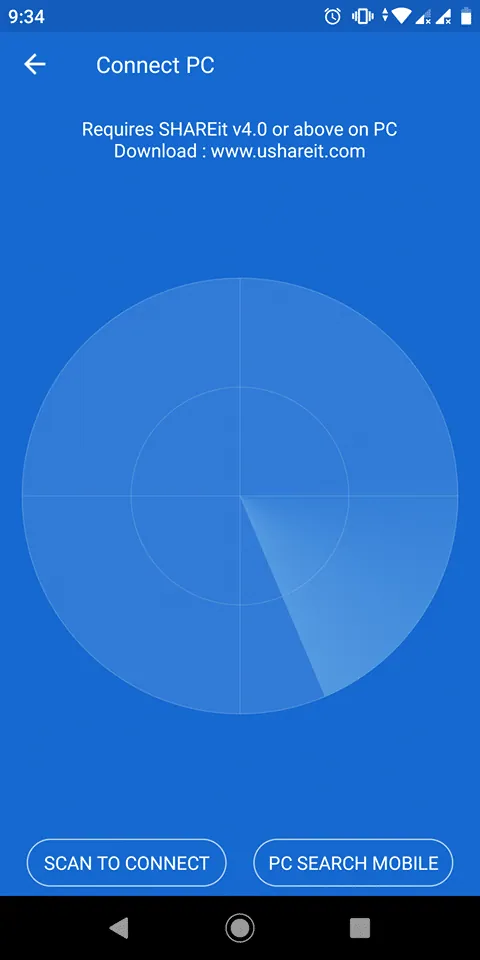
Image source: techloris.com
Option 1: Connect Through the Hotspot
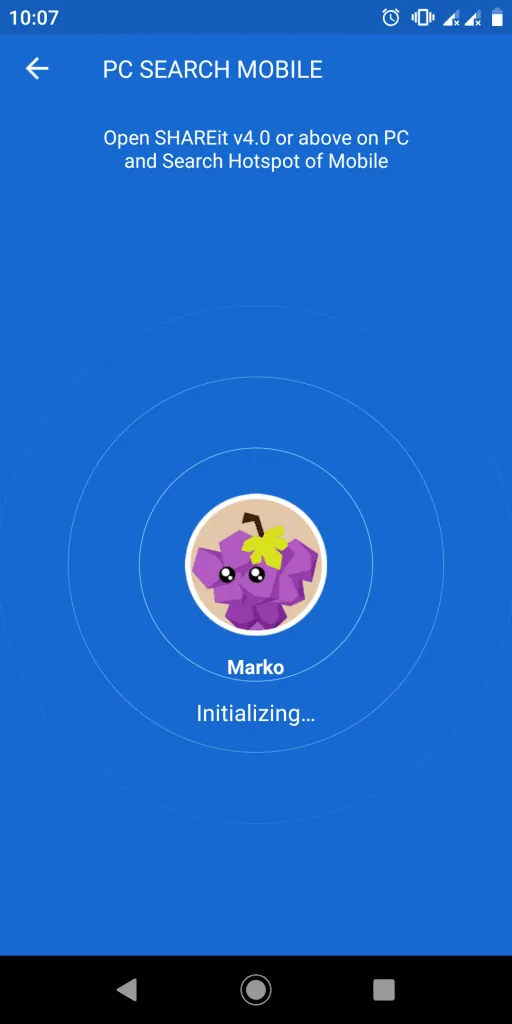
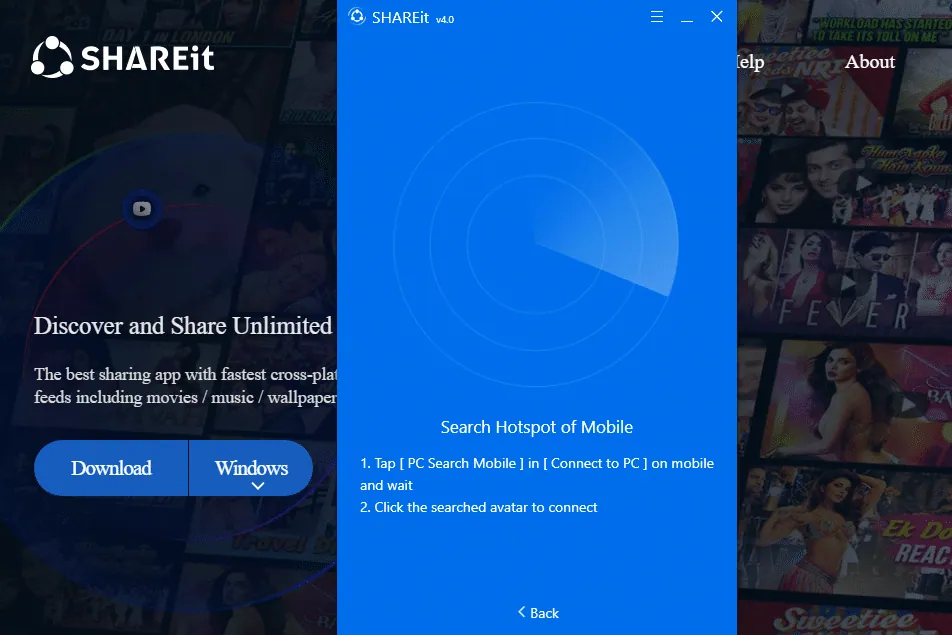
Choose PC search mobile on the phone. The phone starts looking for the PC's hotspot, while on the PC you choose the option to search for the mobile device.
On the phone:
On the PC:
Option 2: Scan a QR Code
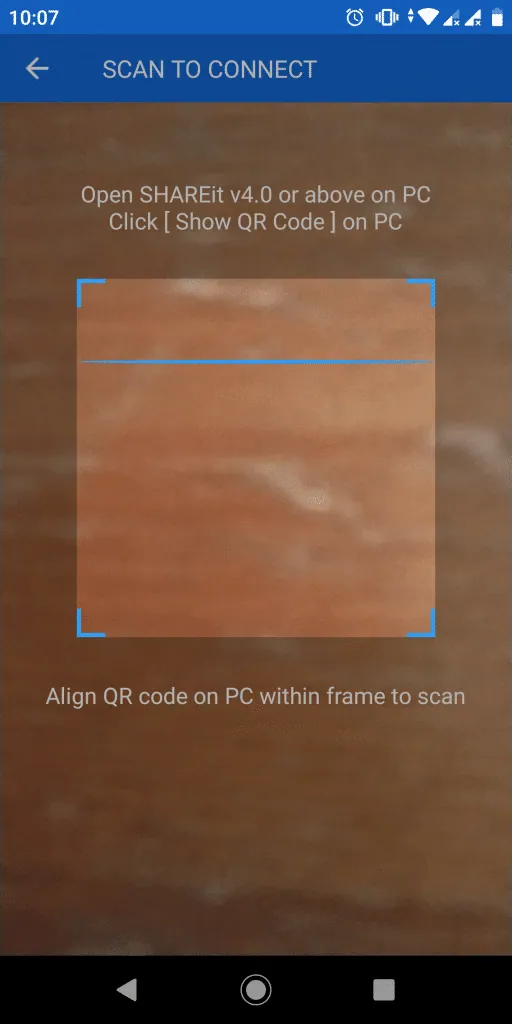
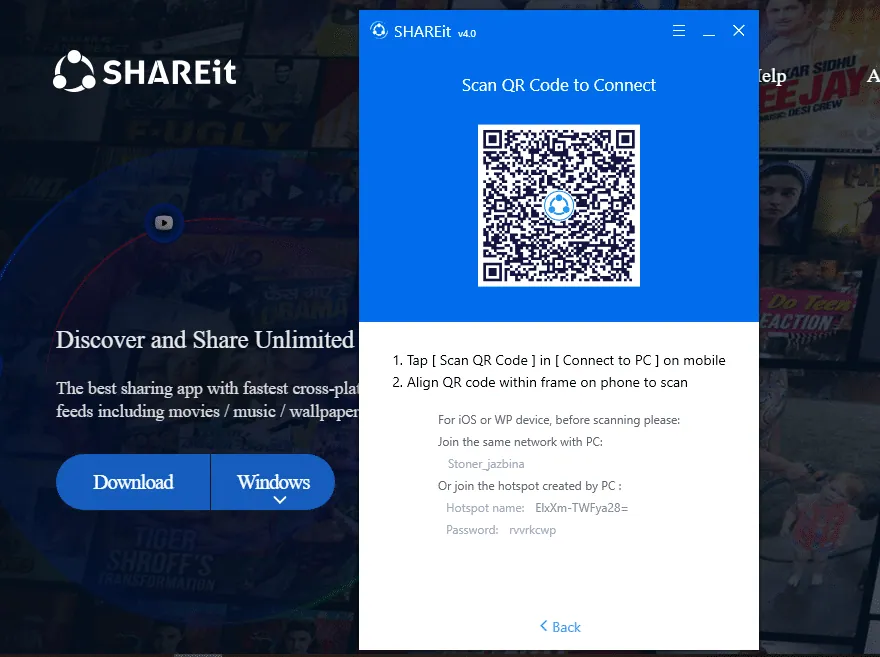
Choose Scan to connect on the phone and Scan QR code to connect on the PC, then point the phone's camera at the code on the PC screen.
On the phone:
On the PC:
Send Your Files
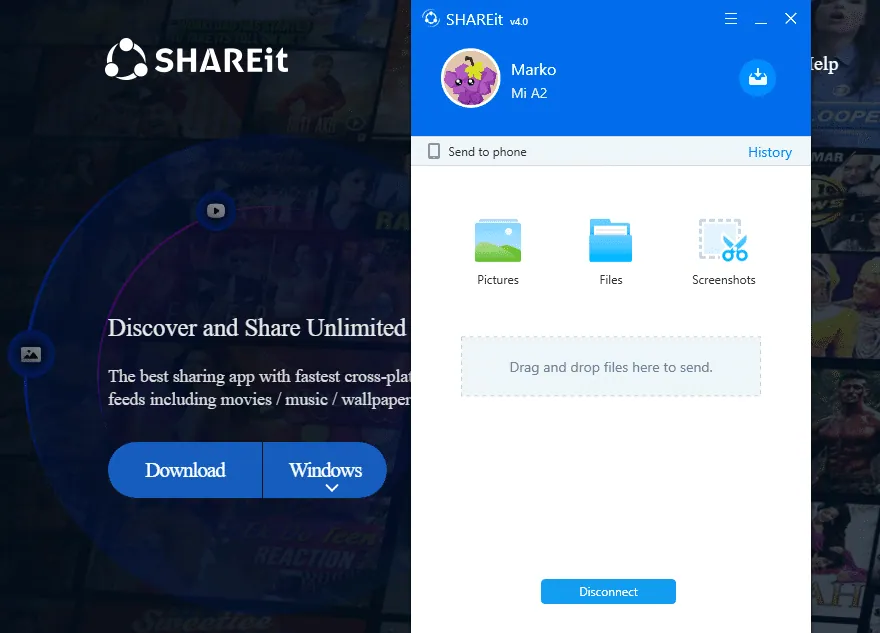
Once the devices are connected, sharing is simple: select the files you want to send and tap or click send. The interface looks almost the same on both devices.
On the PC:
On the phone:
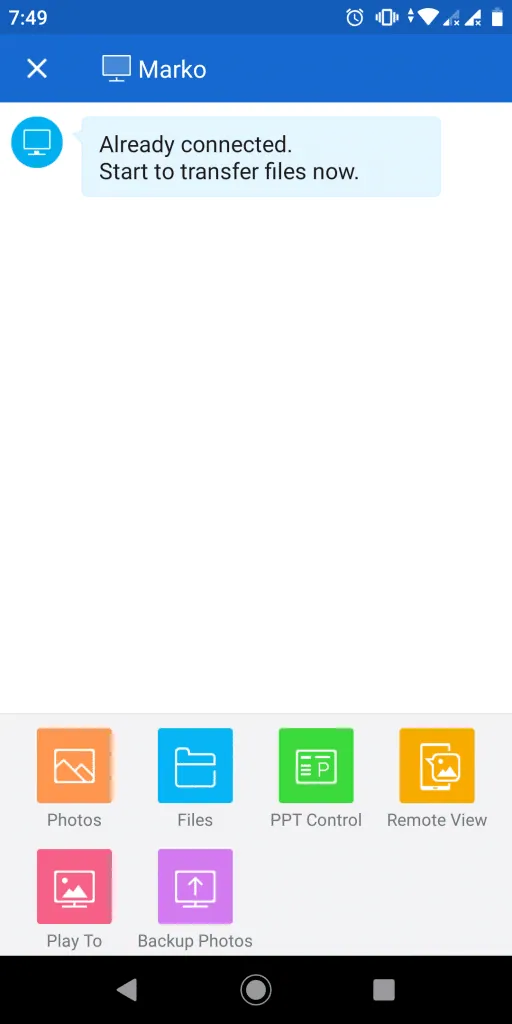
Your phone and PC are now connected without the internet, and you can transfer any file you like. Choose the files on your phone and send them:
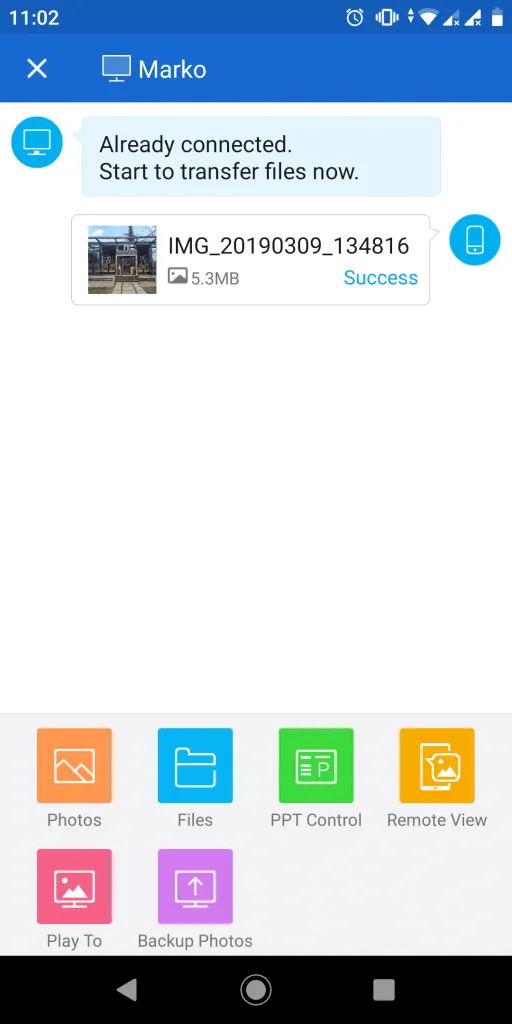
Files you send from the phone appear on the PC almost instantly and are saved in the folder you chose in Settings.
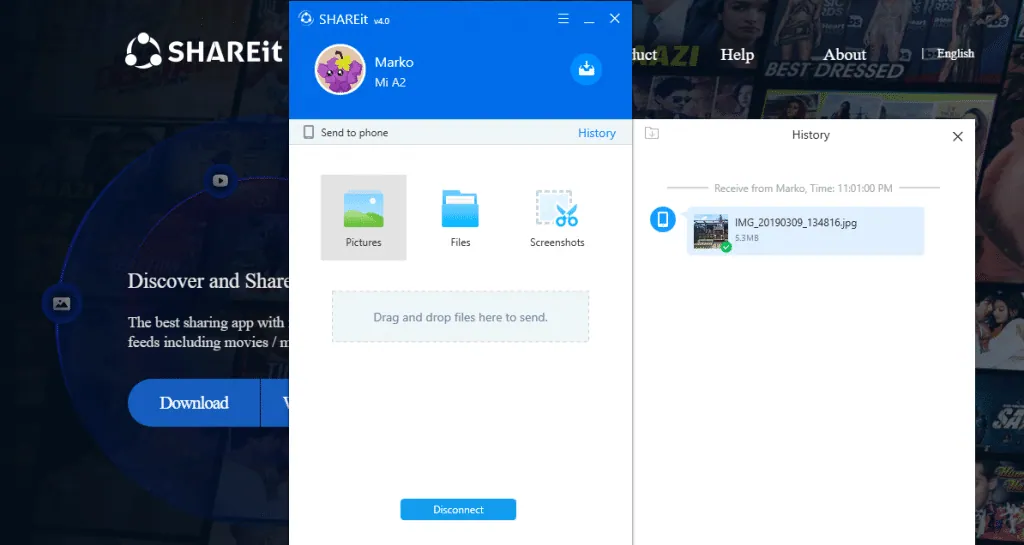
That is all there is to it. SHAREit is free to use, so you can transfer as many files as you like.
Sources: techloris.com, techworm.com, webvaluer.org