Realtek HD Audio Manager: Download, Reinstall & Fix Missing
Realtek HD Audio Manager missing on Windows 10? Learn how to update Realtek audio drivers, download and reinstall the manager, and get it back on your taskbar.
In this article
- Update the Realtek HD Audio Driver
- Download and Reinstall Realtek HD Audio Manager
- Step 1: Uninstall the Current Driver
- Step 2: Download the Latest Realtek Driver
- Step 3: Install the Driver
- How to Fix Realtek HD Audio Manager Missing
- Enable It in Task Manager Startup
- Add Legacy Hardware
- Open It Directly from Its Folder
- AMD High Definition Audio Device Driver for Windows 10
- About All-in-One Repair Tools
On most Windows PCs, sound is handled by Realtek HD Audio drivers. They come with Realtek HD Audio Manager, a control panel for adjusting speakers, headphones and microphones, with options such as equalizer presets, room correction and jack settings. It is the standard audio tool on a huge number of Windows 10 computers.
It is not trouble-free, though. Users regularly report poor sound quality, or find that the Realtek HD Audio Manager has disappeared from the taskbar and Control Panel. In nearly every case, updating or reinstalling the audio driver fixes it. This guide walks you through each method.
Update the Realtek HD Audio Driver
Outdated or faulty drivers cause a large share of PC problems, so updating the audio driver is the best place to start.
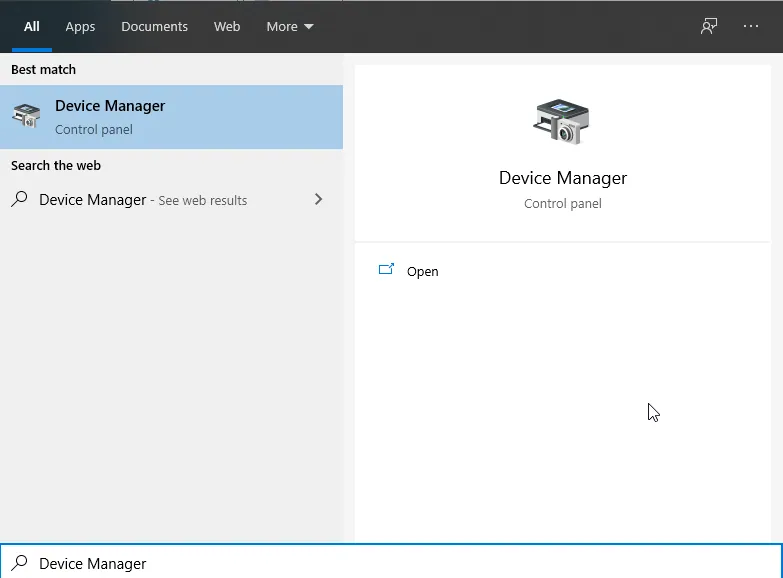
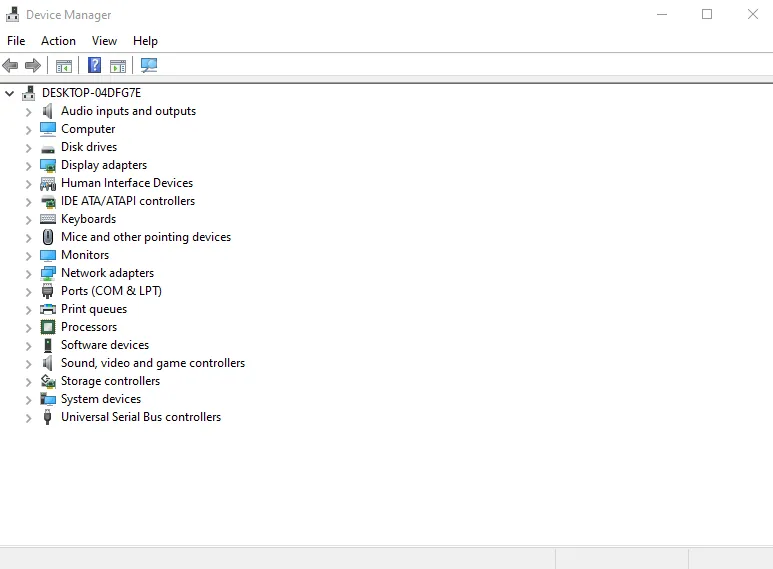
- Type Device Manager in the Windows search bar and open it. Expand Sound, video and game controllers, right-click Realtek Audio (or Realtek High Definition Audio) and choose Update driver.
- Choose Search automatically for updated driver software. If Windows cannot find a newer driver, reinstall it manually as described below.
Download and Reinstall Realtek HD Audio Manager
A manual reinstall takes a little more time, but it replaces every driver file and usually brings the Audio Manager back.
Step 1: Uninstall the Current Driver
Removing the old driver first prevents conflicts with the new one.
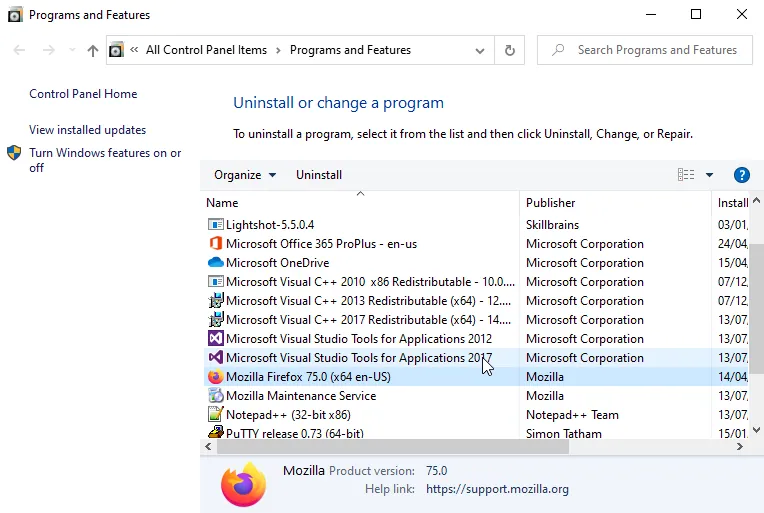
- Open Device Manager again and expand Sound, video and game controllers.
- Right-click your Realtek Audio driver and choose Uninstall device.
- In the window that appears, tick Delete the driver software for this device and click Uninstall.
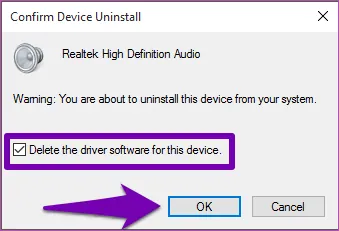
Image source: guidingtech.com
If you cannot find a Realtek driver in Device Manager at all, skip straight to step 2.
Step 2: Download the Latest Realtek Driver
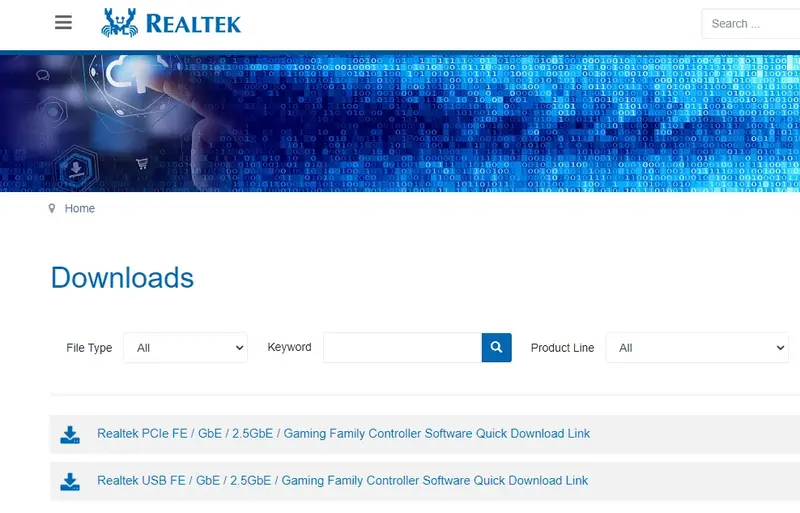
The most reliable source is your PC or motherboard manufacturer's support page, because their drivers include any customizations for your hardware (laptop makers in particular often ship their own version of the Realtek Audio Console). You can also get Realtek's generic driver from the official Realtek website. Its download section is not very intuitive, so follow these steps carefully:
- Go to realtek.com/en/downloads and choose Computer Peripheral ICs.
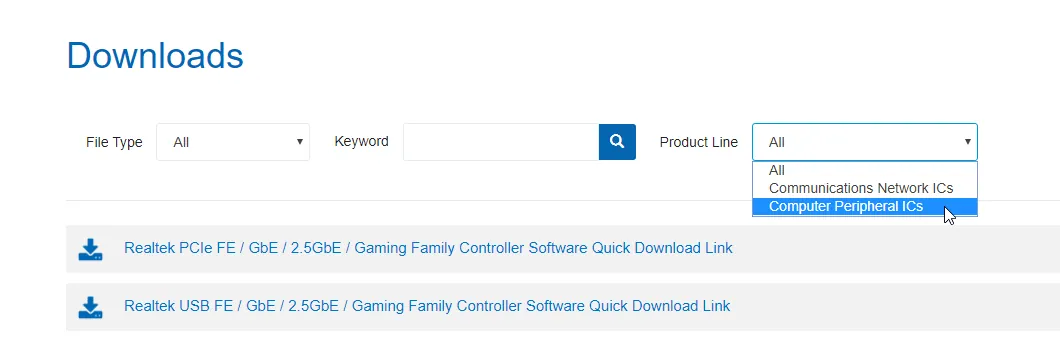
- Open the menu again and choose PC Audio Codecs.
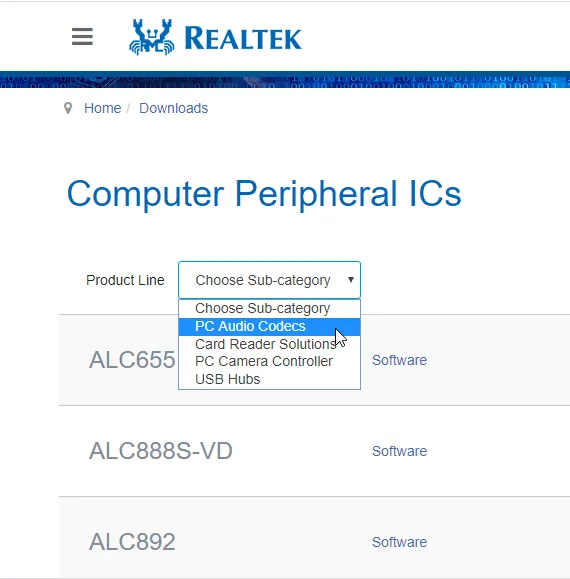
- Select High Definition Audio Codecs (Software).
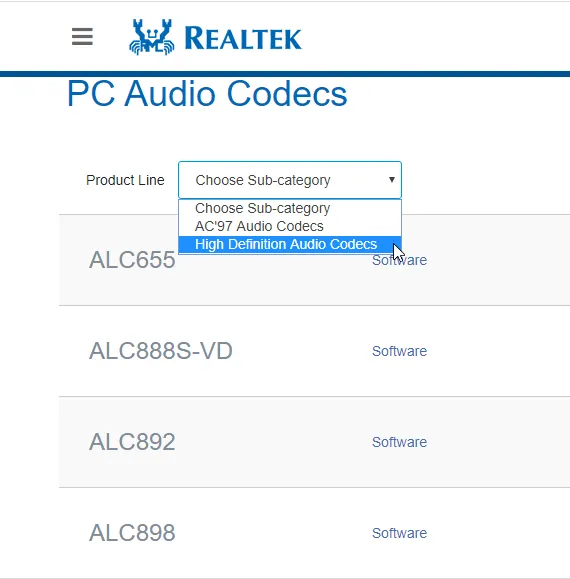
- You will see a list of High Definition Audio Codecs, each with a Software link. In our tests they all lead to the same page, so you can simply open one of them, for example the ALC888S-VD software link.
- Choose the driver that matches your operating system and whether it is 32-bit or 64-bit. In our case that is Windows 10, 64-bit.
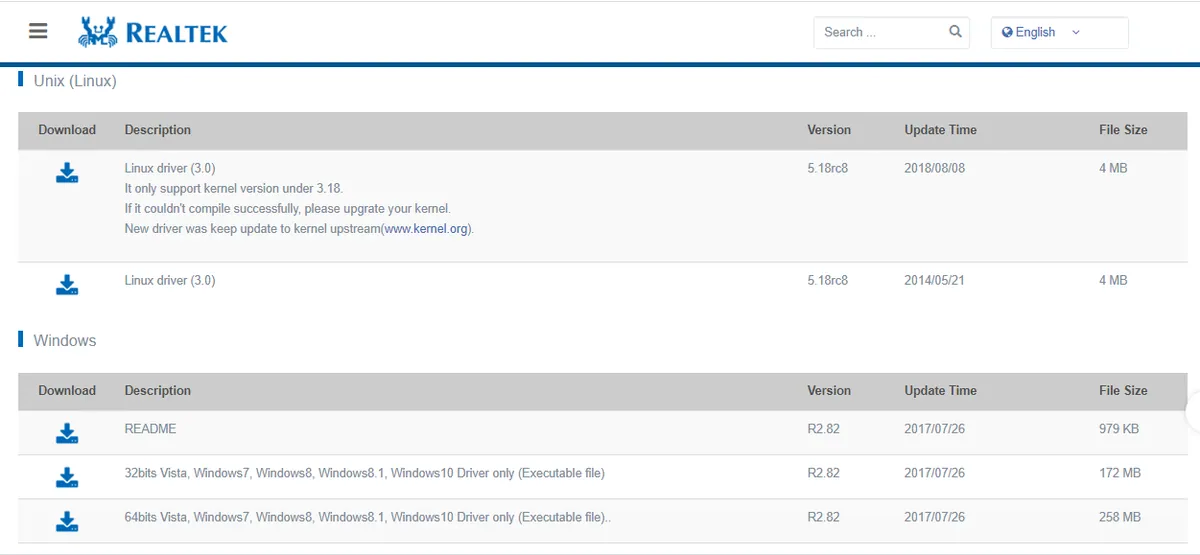
- Click the download button, accept the terms, enter your email address, and the download will begin.
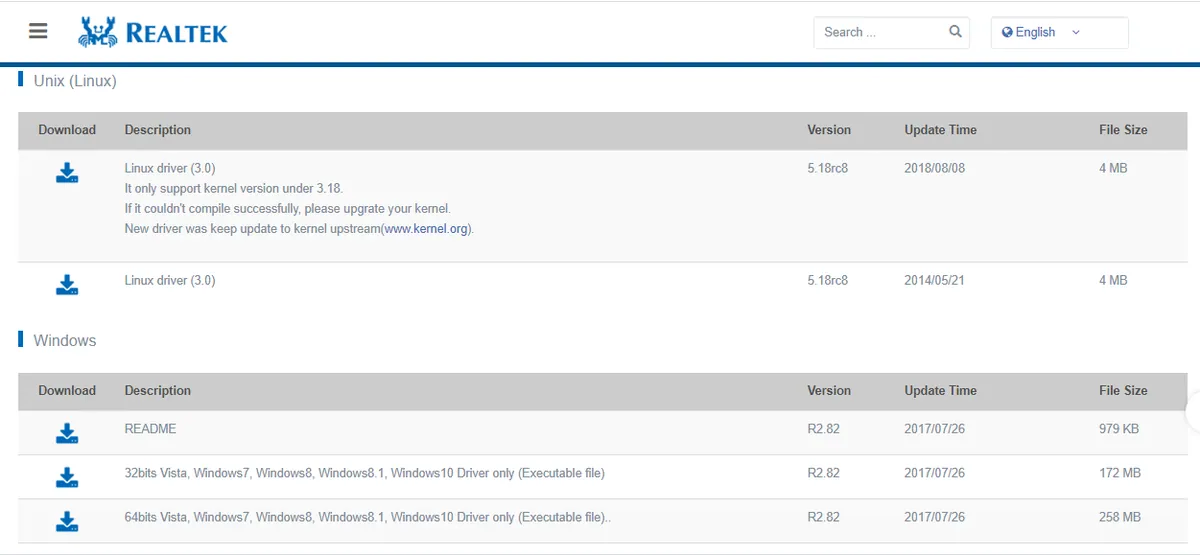
Step 3: Install the Driver
If you downloaded the executable version, just run it. If you downloaded the ZIP version, extract it to your desktop first and run the setup file inside. Follow the installer's instructions and restart your PC when it finishes. The Realtek HD Audio drivers, and the Audio Manager with them, are now reinstalled.
How to Fix Realtek HD Audio Manager Missing
If the Audio Manager is still hard to find after reinstalling, try these fixes.
Enable It in Task Manager Startup
- Open Task Manager (Ctrl + Shift + Esc) and go to the Startup tab.
- Find Realtek HD Audio Manager.
- If its status is Disabled, right-click it and choose Enable.
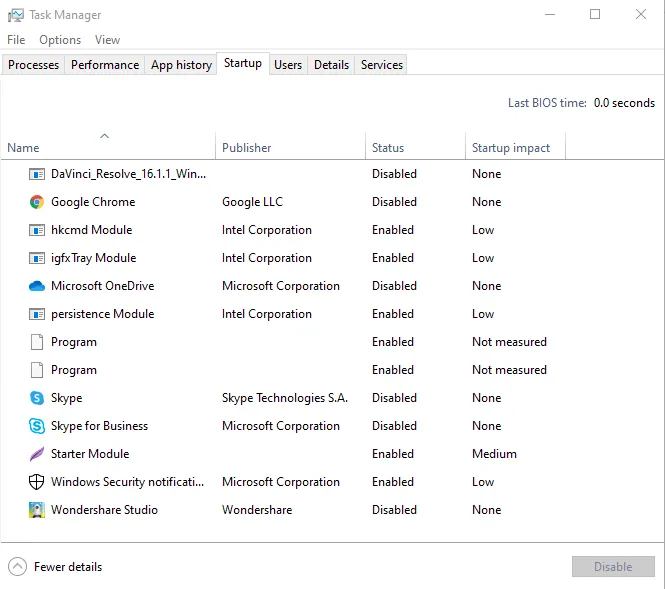
Now the Audio Manager will start every time you turn on the computer.
Add Legacy Hardware
- Open Device Manager.
- Select Sound, video and game controllers.
- Open the Action menu and choose Add legacy hardware.
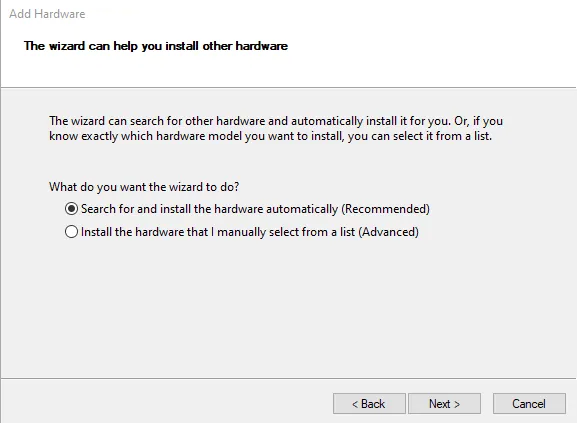
- Choose the recommended option to search for and install the hardware automatically, then follow the wizard.
- Restart your PC and check whether Realtek HD Audio Manager works.
Open It Directly from Its Folder
If there is still no shortcut, open File Explorer and go to C:\Program Files\Realtek\Audio\HDA. Double-click RtkNGUI64.exe (or RAVCpl64.exe on older versions) to open the Audio Manager, and right-click it to pin a shortcut to the taskbar. On newer PCs, the Realtek controls may come as the Realtek Audio Console app from the Microsoft Store instead.
AMD High Definition Audio Device Driver for Windows 10
If your PC has an AMD graphics card, you may also see AMD High Definition Audio Device in Device Manager. It is a separate driver that sends sound over HDMI and DisplayPort to your monitor or TV. AMD Radeon HD, R9, R7 and R5 graphics cards all include it.

If you have problems with HDMI audio, download the latest AMD graphics driver package (formerly AMD Catalyst, now AMD Software: Adrenalin Edition) from amd.com/drivers. The HD Audio driver is included.
About All-in-One Repair Tools
Some websites recommend paid repair utilities such as Restoro that promise to scan your PC and fix outdated drivers, including Realtek audio problems, with a single click. They typically install, scan your system and then show a list of problems with a Clean Now or repair button.
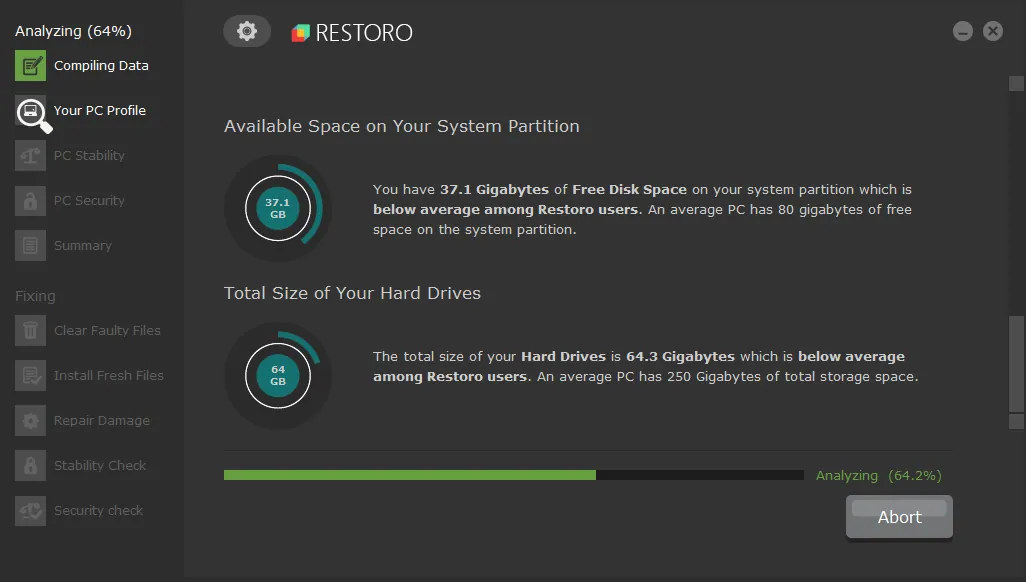
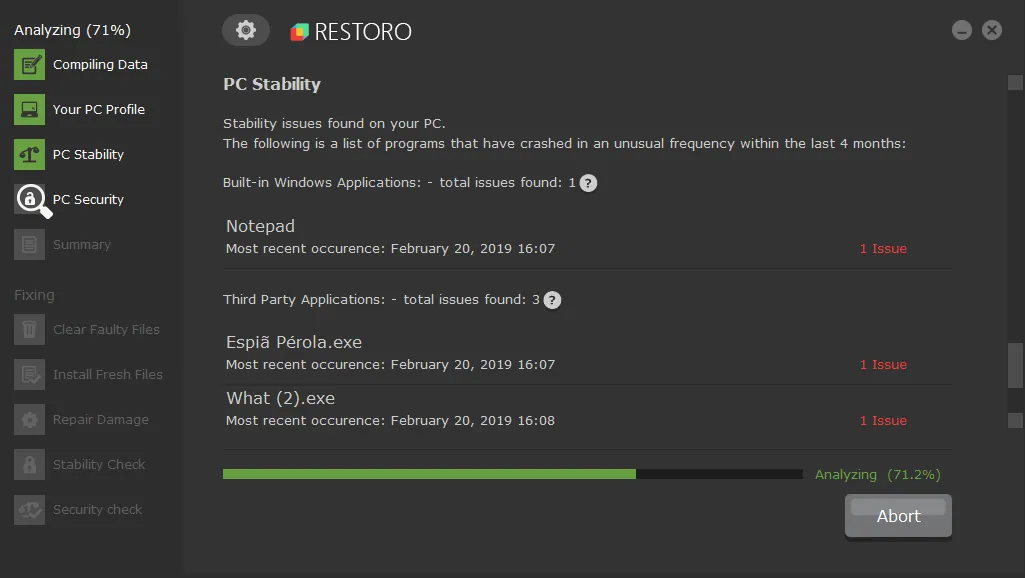
In practice, the free scan usually only lists problems, and fixing them requires buying the full version. For audio problems, the manual steps in this guide do the same job at no cost, so we recommend trying them first.
Sources: drivereasy.com, techspot.com, techloris.com