Discord Push to Talk: How to Enable It on PC and Mobile
Set up Discord Push to Talk on Windows and on your phone: choose a keybind, adjust the release delay, and fix push to talk when it stops working in games.
In this article
Discord has become one of the most popular voice and chat apps for gamers. It is built around gaming but borrows many ideas from Slack: group chat is simple, and you can also set up custom channels, roles and bot commands.
If you play multiplayer games with friends on Discord, you know voice chat can get chaotic fast. Usually one person with a cheap headset or a laptop's built-in microphone ruins it for everyone, sending keyboard clatter, fan noise and background TV into the channel.
The fix is Push to Talk. After my gaming group switched to it, the arguments about background noise stopped, the channel became quieter, and we could actually concentrate on the game. Whether you want to convince a friend or you are the noisy one, here is how to turn it on and make it work.
The steps below work in the Discord desktop app on Windows, macOS and Linux, and in the web version. One caveat: in the browser, Push to Talk only works while the Discord tab is in focus, so the desktop app is the better choice for gaming.
What is Push to Talk in Discord?
Push to Talk (PTT) is a common feature in gaming voice chat: your microphone stays muted until you hold down a key you have chosen. Discord's default is Voice Activity, which transmits whenever the microphone picks up sound. Push to Talk is not on by default, so you have to enable it and assign a key yourself.
How to Enable Push to Talk in Discord
Make sure you are signed in to Discord, then:
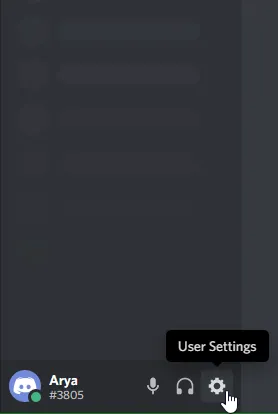
- Click the gear icon (User Settings) next to your username in the bottom-left corner.
- Under App Settings, click Voice & Video.
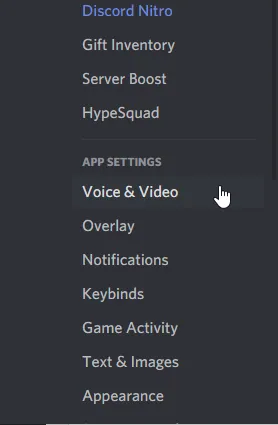
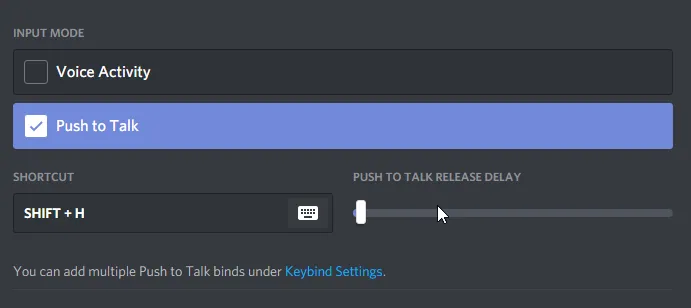
- Under Input Mode, select Push to Talk.
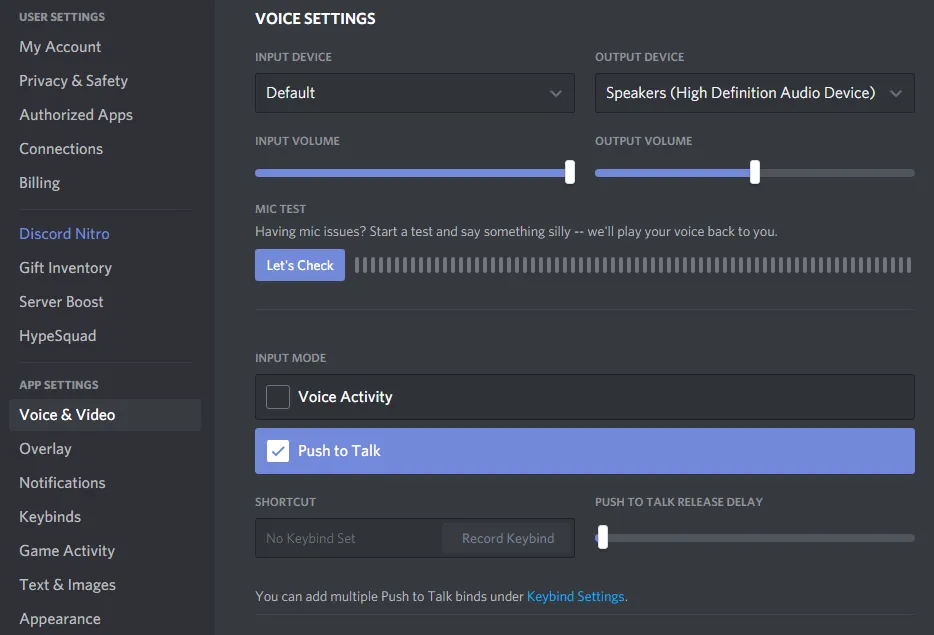
How to Set Up a Push to Talk Key
Push to Talk is now enabled, but it will not do anything until you assign a key to it.
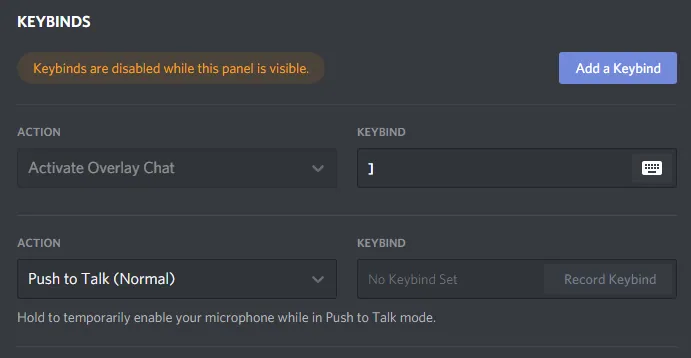
- In Settings, scroll down to Keybinds. Discord lets you create several shortcuts for the same action, which is useful if you play games with different control schemes.
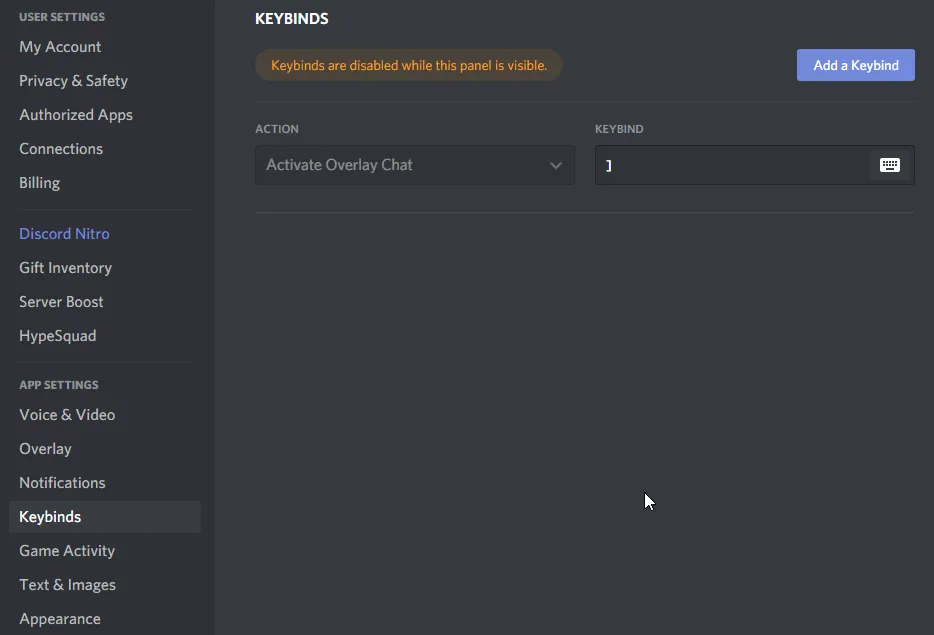
- Click Add a Keybind in the top-right corner.
- Set the action to Push to Talk (Normal), click Record Keybind, press the key you want to use, and click Stop Recording.
- Go back to Voice & Video. Below the Push to Talk option you will find the Push to Talk Release Delay slider, which controls how long Discord keeps transmitting after you release the key. The minimum is 20 ms, but a slightly higher value stops the ends of your sentences from being cut off.
The web version of Discord has no Keybinds page. Instead, go to Settings > Voice & Video, click Edit Keybind under Push to Talk and set your shortcut there.
How to Fix Discord Push to Talk not Working
If Push to Talk does not respond while you are in a game, work through these fixes in order.
Run Discord as Administrator
If your game runs with administrator rights, Windows will not pass your key presses to Discord unless Discord also runs as administrator. This is the most common reason Push to Talk fails in games.
- Close Discord completely (including from the system tray).
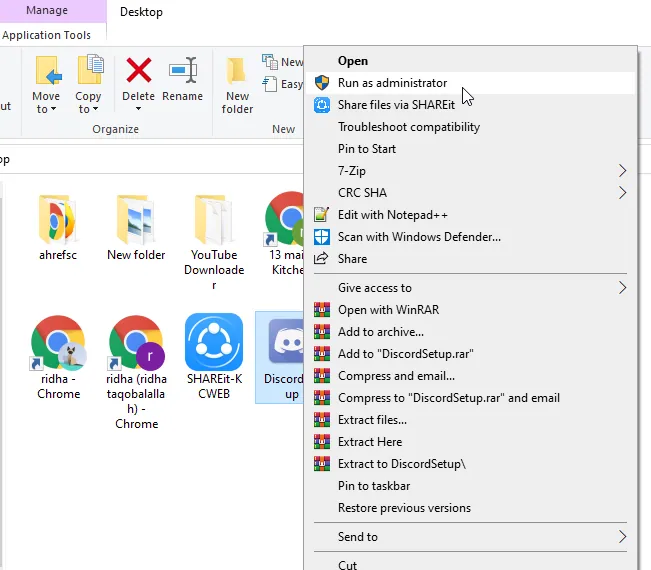
- Right-click the Discord shortcut and choose Run as administrator.
- Join a voice channel and test your Push to Talk key.
Check Your Settings and Keybind
Go back through the two sections above and confirm that Push to Talk is selected as the input mode and that your keybind is still there. Choose a key the game does not already use. If things still do not work, reset your voice settings with Reset Voice Settings at the bottom of the Voice & Video page and set Push to Talk up again.
Uninstall Recently Installed Programs
If the problem started after you installed or updated another program, such as a keyboard utility, overlay or macro tool, it may be intercepting your keys. Uninstall it and test again. If that does not help, reinstall Discord:
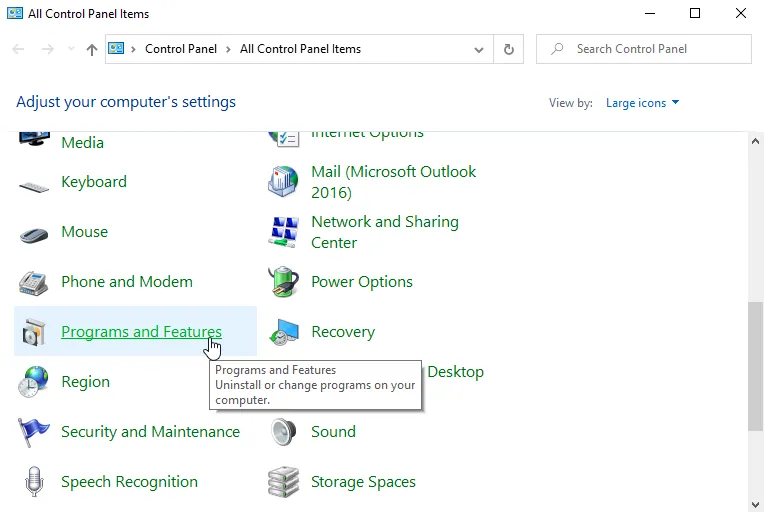
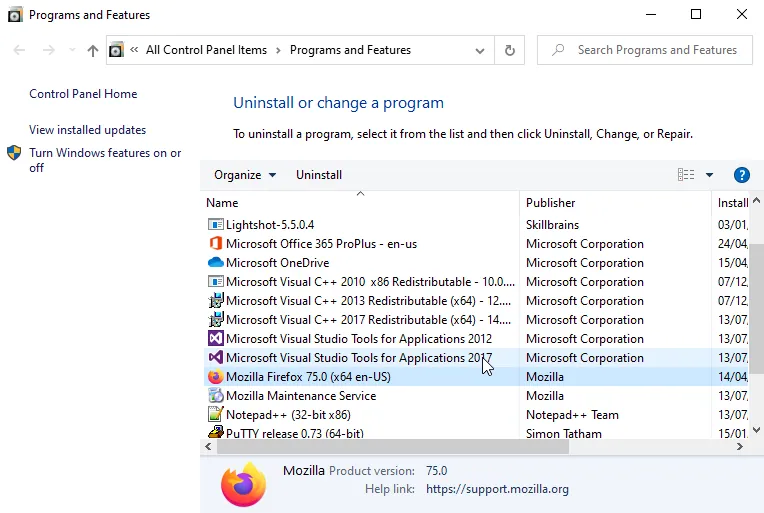
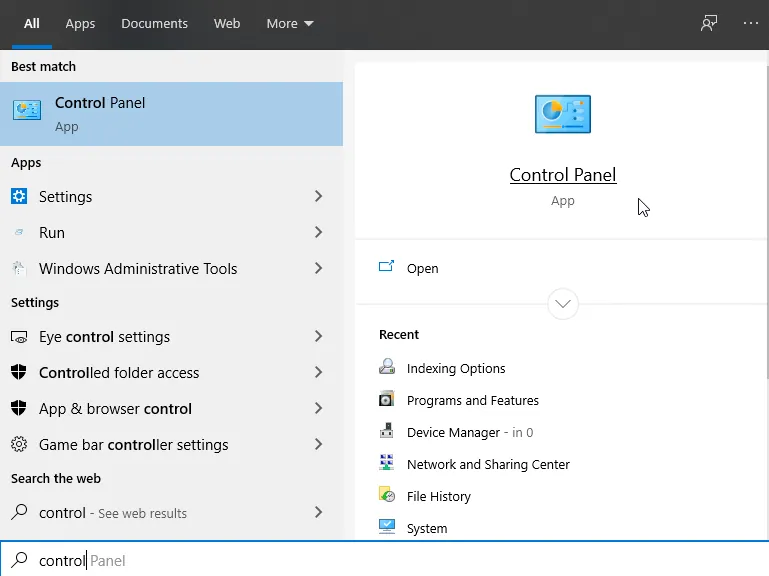
- Press the Windows key, type control and open Control Panel.
- With View by set to Category, click Uninstall a program.
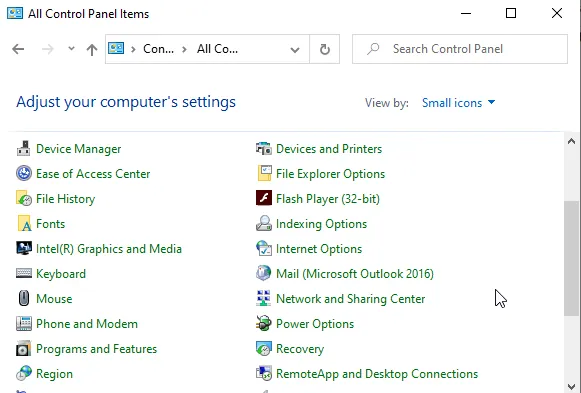
- Right-click Discord and choose Uninstall.
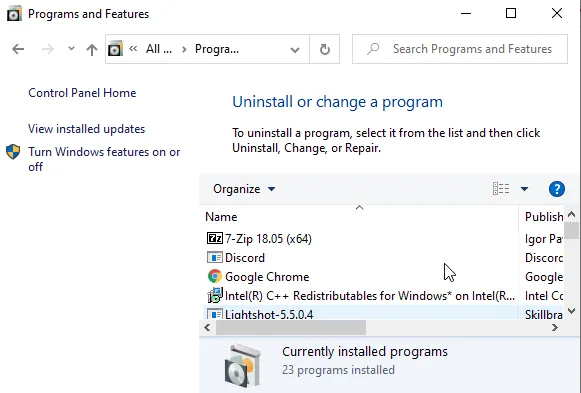
- Download the latest version from discord.com, install it and test Push to Talk again.
How to Enable Push to Talk on Android and iPhone
Plenty of people use Discord mainly on their phones, and Push to Talk works there too.
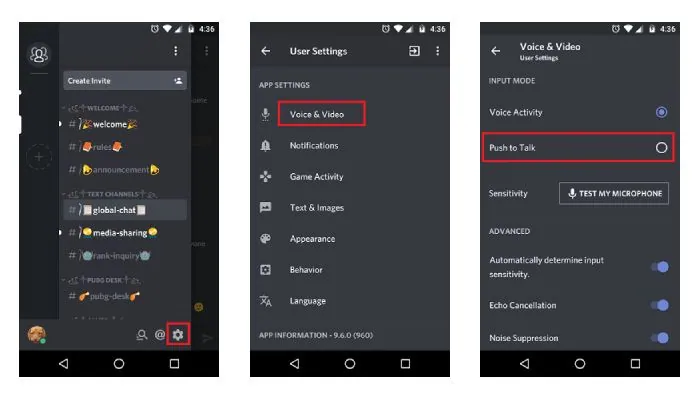
- Open the Discord app and tap your profile picture or the gear icon to open User Settings.
- Scroll down and tap Voice (Voice & Video).
- Under Input Mode, select Push to Talk.
When you join a voice channel, a large button appears on screen. Hold it down while you speak.
If none of these fixes work, contact Discord Support for further help.
Sources: itechcliq.com, appuals.com, beebom.com, drivereasy.com