How to Uninstall and Reinstall Avast Antivirus on Windows 10
Remove Avast Free Antivirus completely from Windows 10 using Settings or the Avast Clear tool, then reinstall a clean copy. A simple step-by-step guide.
In this article
About Avast Free Antivirus
Avast is one of the best-known antivirus brands, and its free edition is surprisingly capable. Avast Free Antivirus can run every type of virus scan and includes most of Avast's core protection: it checks new files as they arrive on your system, watches installed programs for malicious behavior, and guards your web browsing and email. It can even scan your home network to show which devices are connected to your router, and Avast's password manager is included at no cost.
What you do not get for free is phishing protection, the sandbox for isolating suspicious files, the Avast firewall and ransomware protection. Those require a paid plan.
The free version has a couple of drawbacks. The installer tries to slip extra software past you, such as Google Chrome, so read every screen carefully. Avast has also had privacy problems: its former subsidiary Jumpshot sold browsing data collected from users. The company shut Jumpshot down in 2020 and now makes it clear during installation that sharing data is optional.
How to Uninstall Avast Free Antivirus on Windows 10
Many people find that Avast will not uninstall cleanly. The uninstaller may fail with an error such as Avast error 42056, the Avast service may stop working halfway, or the program appears to be removed but leaves files and drivers behind. Those leftovers can stop you from installing another antivirus program or reinstalling Avast itself, so it is important to remove it completely. Here are two ways to do that.
Method 1: Uninstall Avast Manually
Step 1: End the Avast Process in Task Manager
- Press Ctrl + Shift + Esc (Windows 10) or Ctrl + Alt + Del (older versions) to open Task Manager.
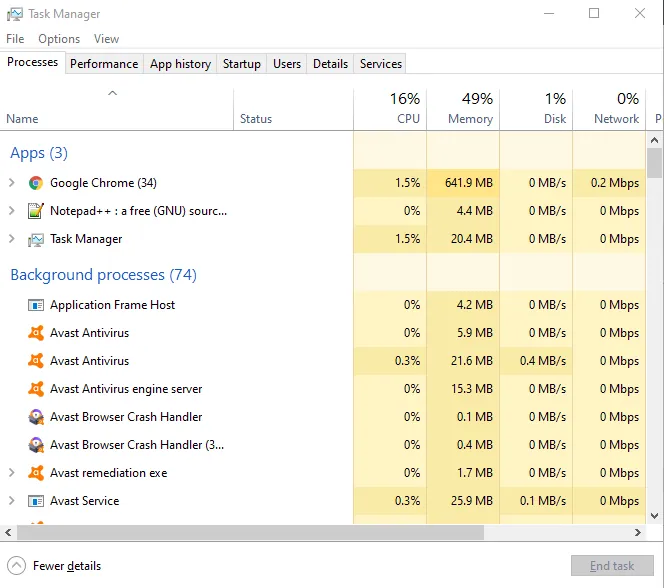
- On the Processes tab, find the Avast process.
- Select it and click End task.
If Windows refuses to end the process, turn off Avast's Self-Defense module first (Avast > Menu > Settings > Troubleshooting).
Step 2: Uninstall Avast from Apps & Features
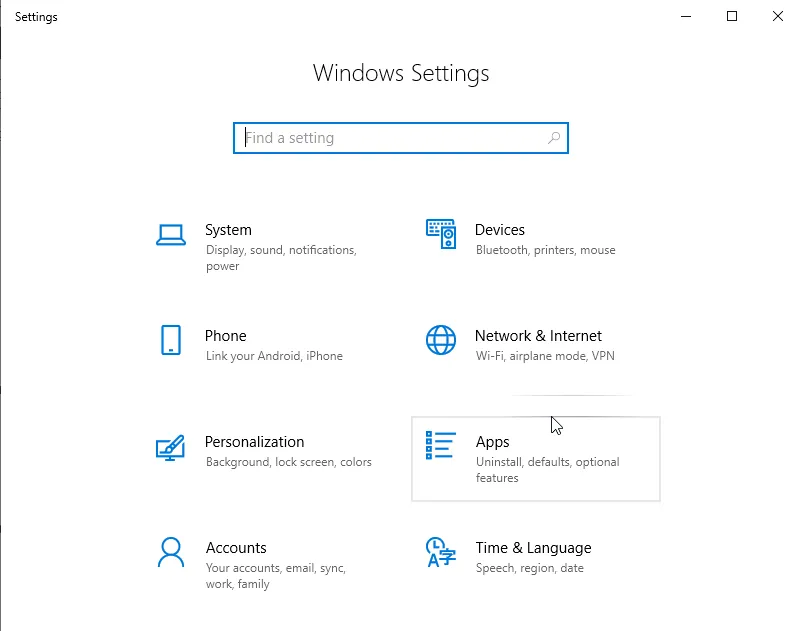
- Press Windows + I and open Apps, then Apps & features.
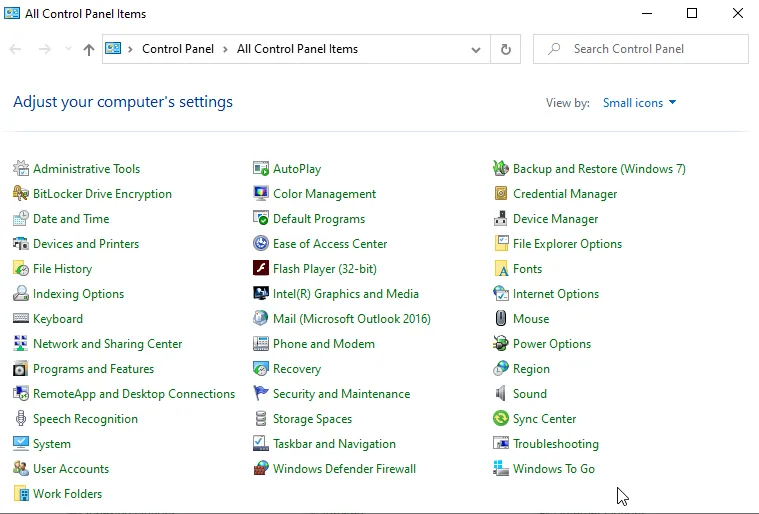
- On older versions of Windows, open Control Panel and choose Programs and Features instead.
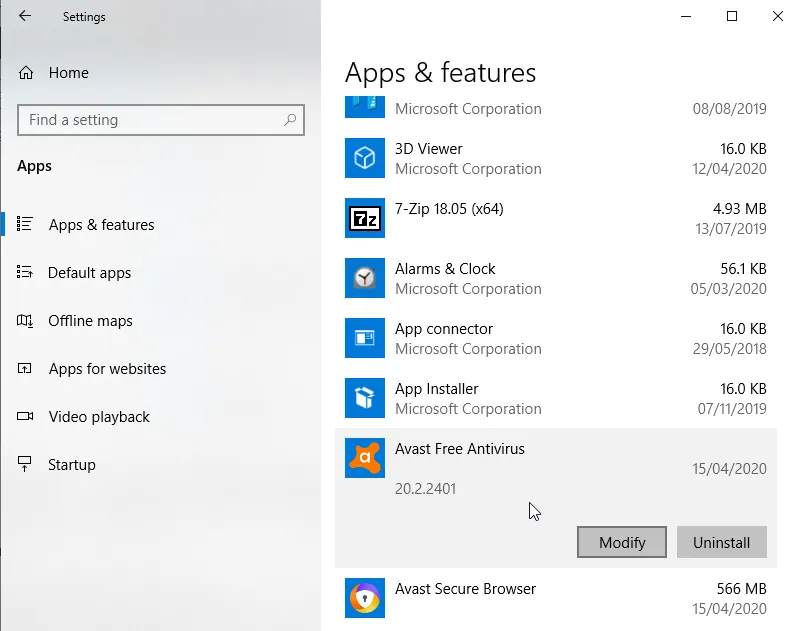
- Find Avast Free Antivirus, click it and choose Uninstall. Follow the Avast uninstaller to the end.
Step 3: Remove Avast Leftovers
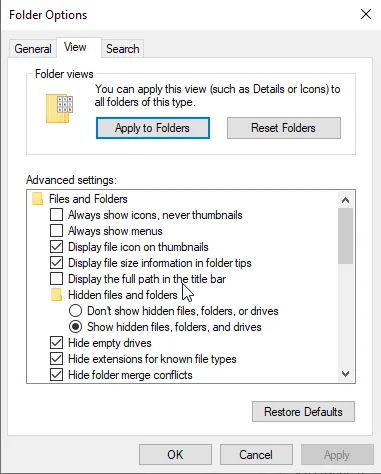
- Press Windows + E to open File Explorer, then open the View tab and click Options.
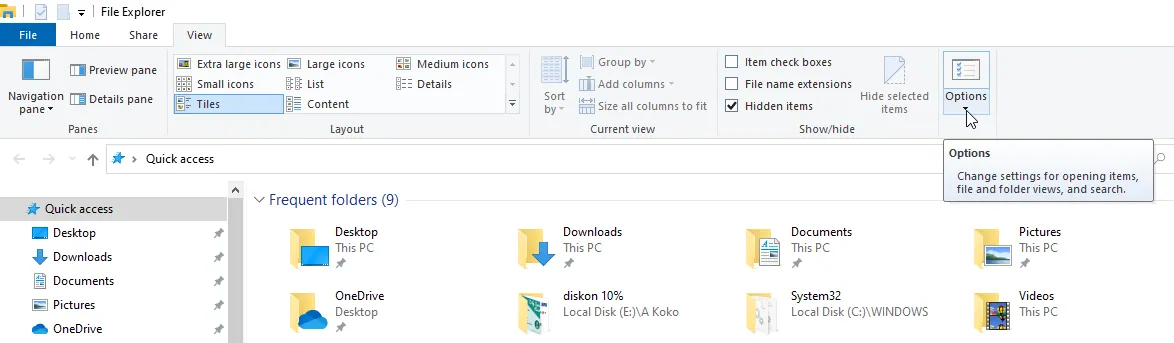
- On the View tab of the new window, select Show hidden files, folders, and drives and click OK. Then delete any remaining Avast folders in Program Files, ProgramData and your user's AppData folder.
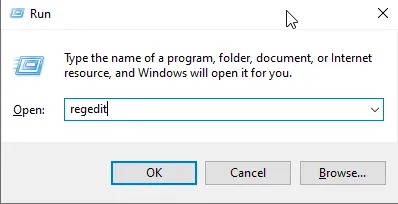
- Press Windows + R, type regedit and press Enter. Back up the registry first (File > Export).
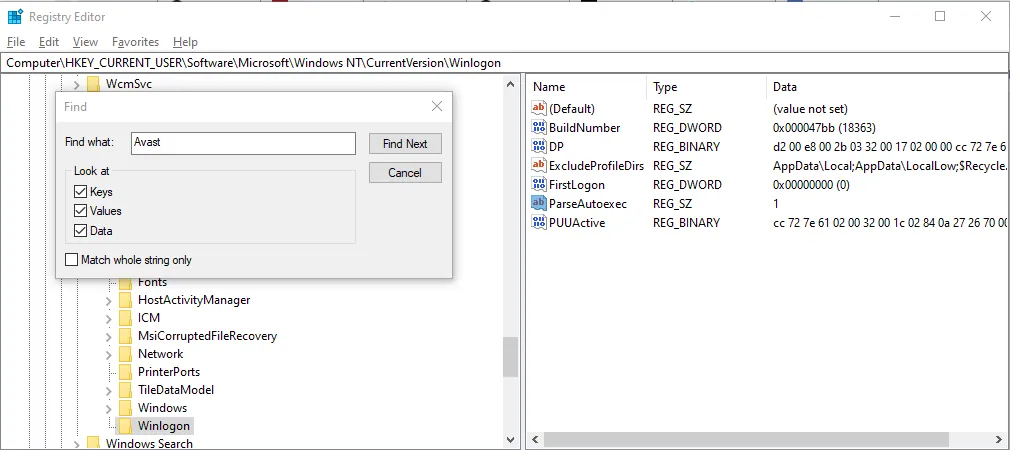
- Open the Edit menu, choose Find, type Avast and click Find Next. Delete the keys that clearly belong to Avast, pressing F3 to jump to the next match.
Method 2: Use the Avast Uninstall Utility (Avast Clear)
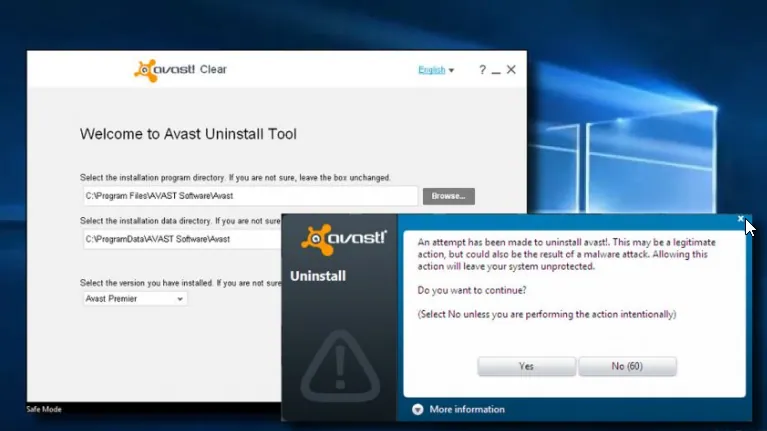
Avast offers a free removal tool, Avast Clear (avastclear.exe), that removes every part of the program, including files the normal uninstaller leaves behind. It is the most reliable option when the standard uninstall fails.
- Download avastclear.exe from Avast's official website and save it to your desktop.
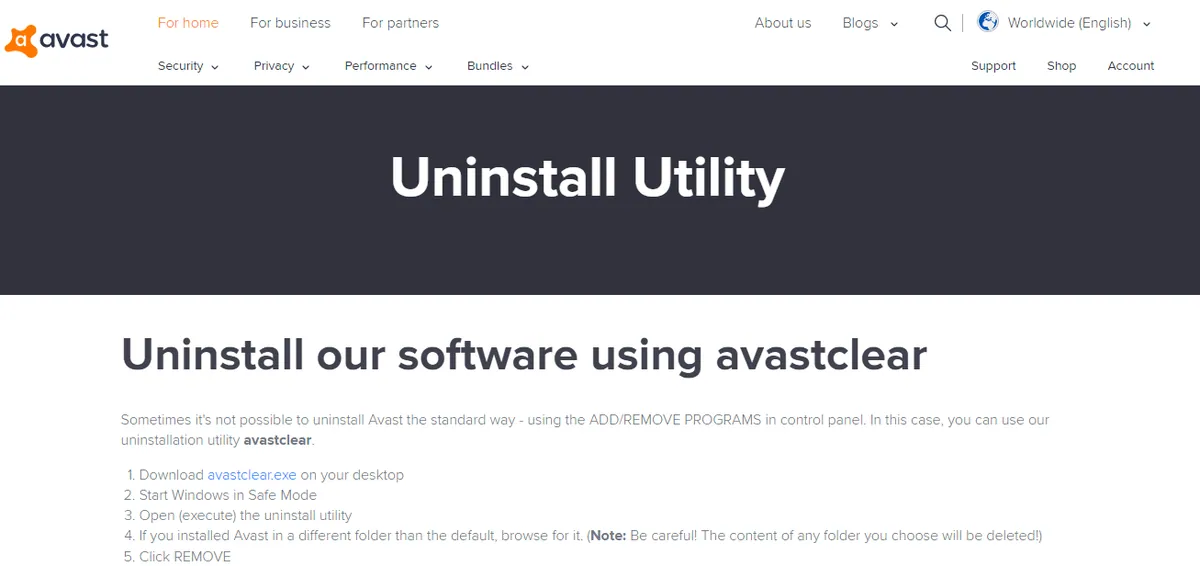
- Restart Windows in Safe Mode. (The tool offers to do this for you when you run it.)
- In Safe Mode, double-click avastclear.exe.
Image source: itstillworks.com - Check that the selected folder is the one where Avast is installed (the default folder unless you changed it during installation), then click Uninstall. Be careful to choose the correct folder: everything in it will be deleted.
- Restart your PC when the tool finishes.
How to Reinstall Avast
Reinstalling is the usual fix when Avast becomes corrupted or stops working. First, choose the edition you need:
- Avast Free Antivirus is free and intended for home use only.
- Avast Pro Antivirus adds more customization and a sandbox (virtualization) for running suspicious files safely.
- Avast Internet Security is the higher tier, with spam blocking and extra protection for your data and identity. Avast recommends it for business use.
Then reinstall it:
- Download the installer from Avast's official website. Avoid third-party download sites.
- Double-click the installer and accept the license agreement.
- Choose Customize if you want to pick components, and untick any extras you do not want, such as Google Chrome or email updates. Click Next through each step.
- Restart the computer when the installation is complete.
Sources: lifewire.com, techyuga.com, avast.com, itstillworks.com